Editing a block
Tap any block on your site and its editor slides up from the bottom. Every block editor is laid out the same way, so once you have edited one you can edit all of them.
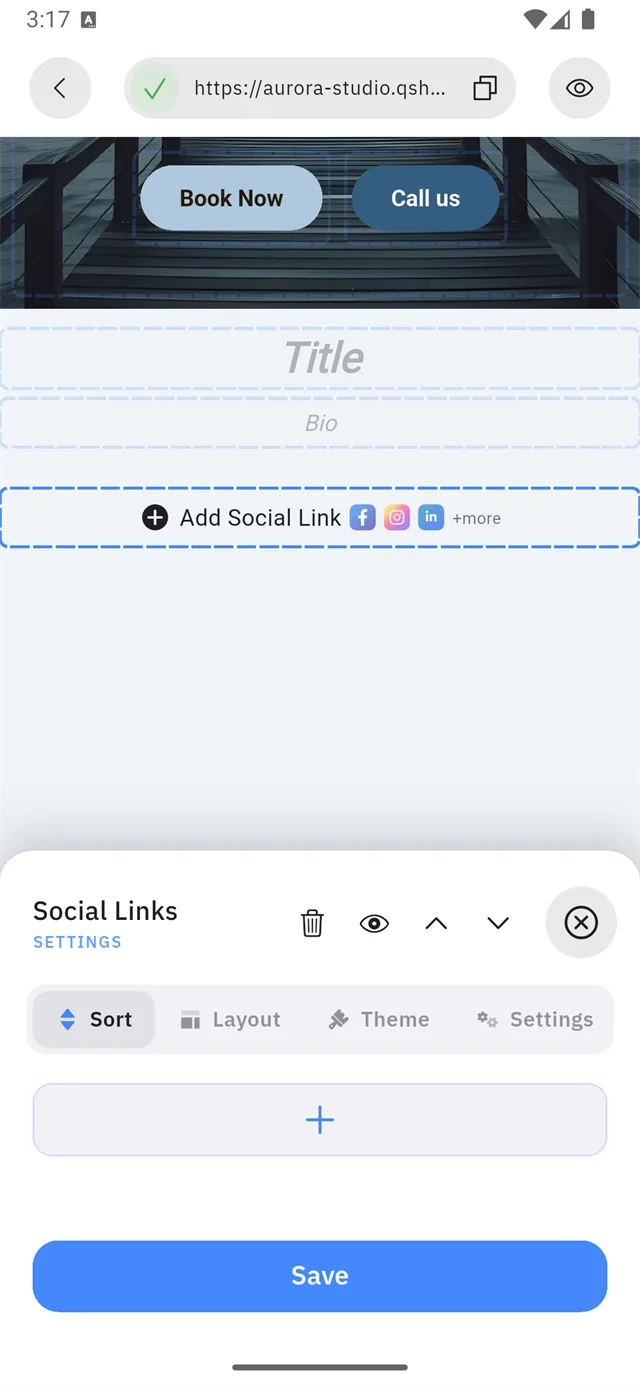
The header row
The block's name sits on the left. On the right are five controls — numbered above:
| Icon | What it does | |
|---|---|---|
| 1 | 🗑 | Delete this block |
| 2 | 👁 | Hide it — stays in the editor, disappears from your live site |
| 3 | ⌃ | Move it up — one place higher on your page |
| 4 | ⌄ | Move it down — one place lower |
| 5 | ✕ | Close the editor |
Reordering your page
Controls 3 and 4 are how you rearrange your site. Each tap moves the block one position, and the page behind the sheet updates as you go — so you can watch it land where you want.
:::tip There is a faster way for a long page Tapping up four times works, but you can also press and hold a block on the canvas and drag it to its new position. Use the arrows for a nudge, dragging for a big move. :::
Deleting asks first
Control 1 does not delete straight away:
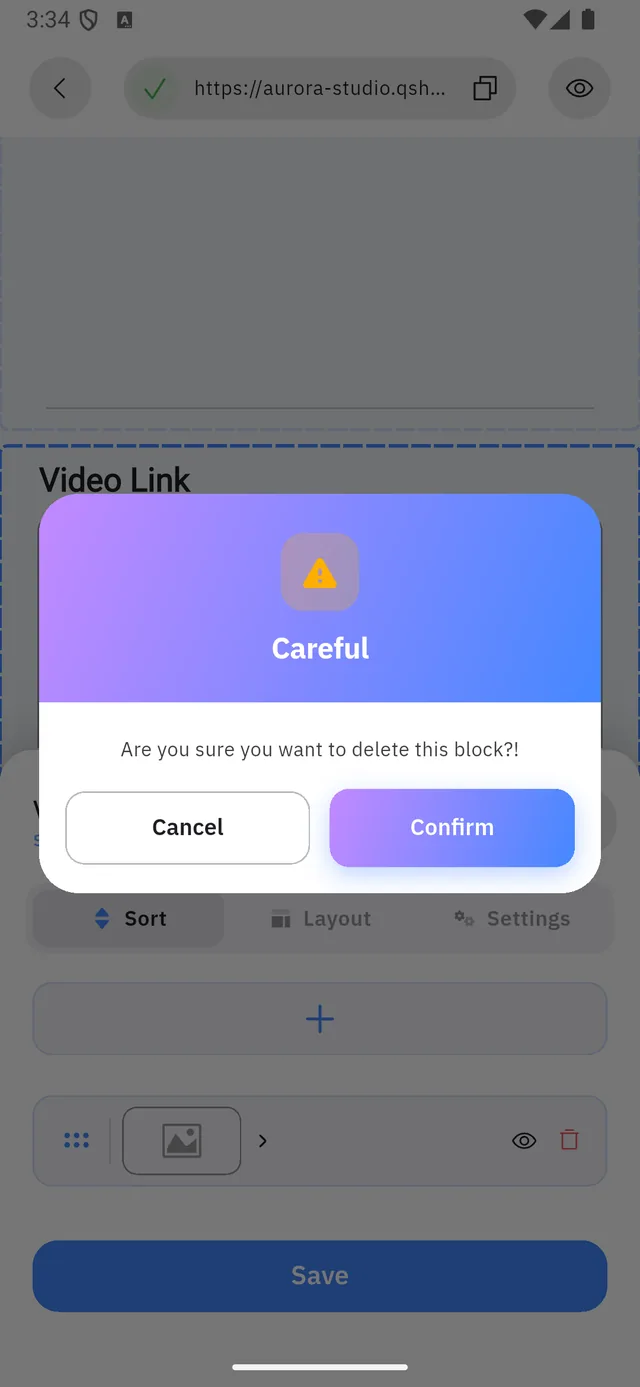
Careful — Are you sure you want to delete this block?!
Confirm removes the block and everything in it. There is no undo, so if you only want it off the live page, use control 2 instead.
:::tip Hide instead of delete Hiding keeps your work. Use it for a block you want back next season — a holiday offer, a seasonal menu — instead of deleting and rebuilding it. :::
The four tabs
| Tab | What lives there |
|---|---|
| Sort | The block's content — the items themselves, in order |
| Layout | How they are arranged |
| Theme | Colours and icon styling |
| Settings | Background, duplicate, and per-block options |
Sort — the content
This is where you add and reorder the items. In a Social Links block, each item is one platform.
Layout — the arrangement
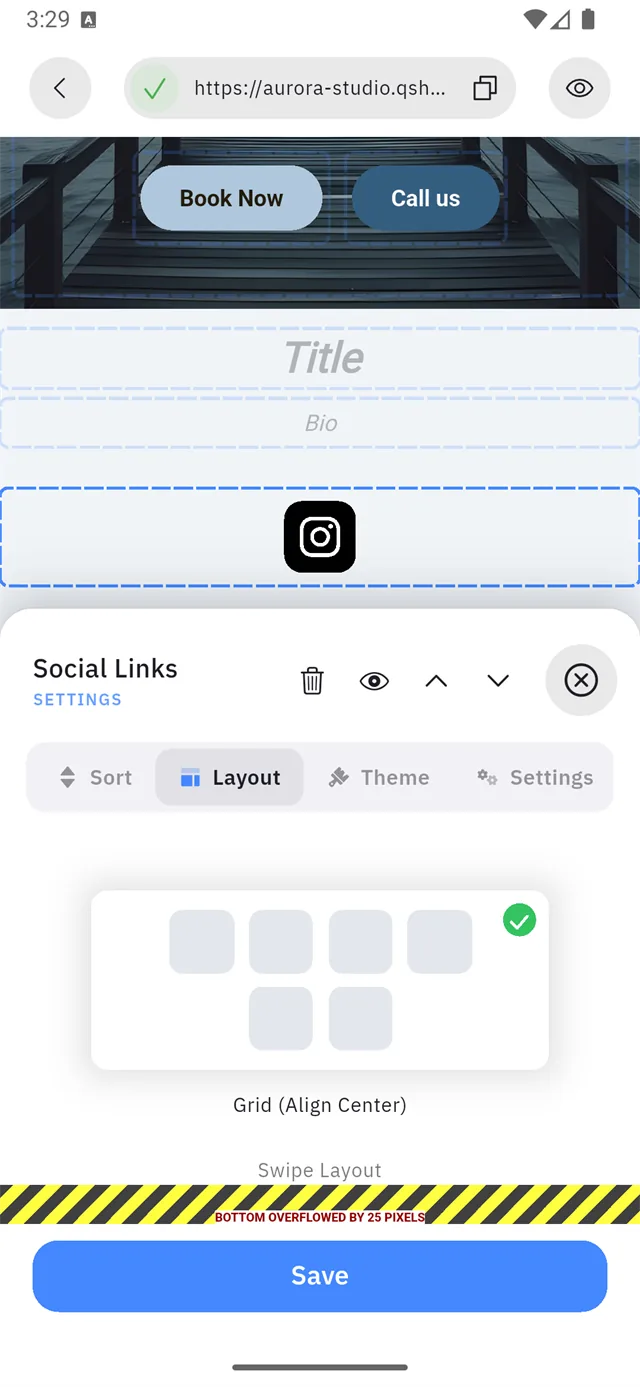
For Social Links the choices are Grid (with alignment) or Swipe.
Theme — the colours
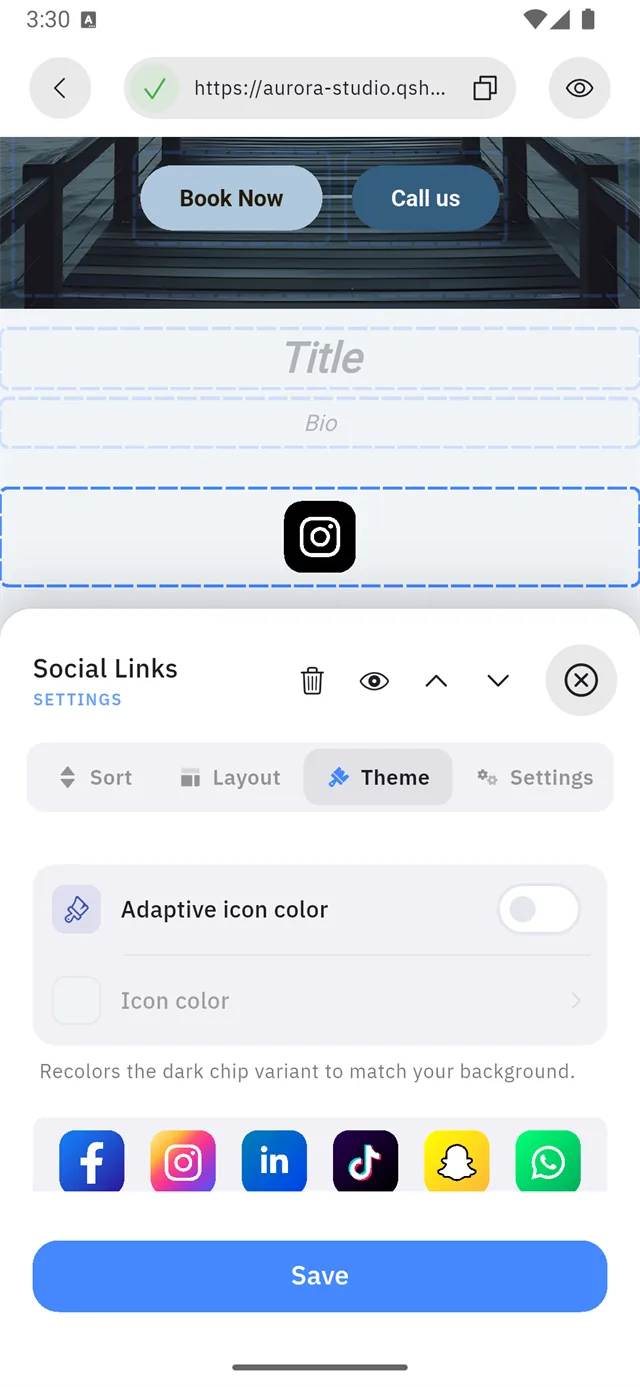
Adaptive icon color recolours the dark chip variant to match your background, so the icons stay legible whatever your theme.
Settings — the rest

Duplicate copies the whole block with its contents — the fastest way to build a second, similar section.
Nothing is live until you Save
The Save button at the bottom commits the block. Closing with ✕ before saving discards your edits.
Worked example — adding your social links
1. Add the block
Add Block → Social Links. It appears with an empty
+ Add Social Link row.
2. Pick a platform
Tap +. The picker opens, grouped into Popular and Social, with a search box at the top.

3. Give it a full URL
:::danger A username is not enough The field wants the complete web address. Typing just your handle produces:
Invalid Instagram Link

| ❌ Rejected | ✅ Accepted |
|---|---|
aurorastudio | https://instagram.com/aurorastudio |
The ? button beside the field shows where to find your link on that platform. :::
There is also an optional Name field, for when you want the link labelled something other than the platform's name.
4. Save twice
Save the link, then Save the block. Two saves, because you are closing two sheets.
Editing the parts that came with your site
The header and hero are blocks too, but they open slightly different editors.
Website header
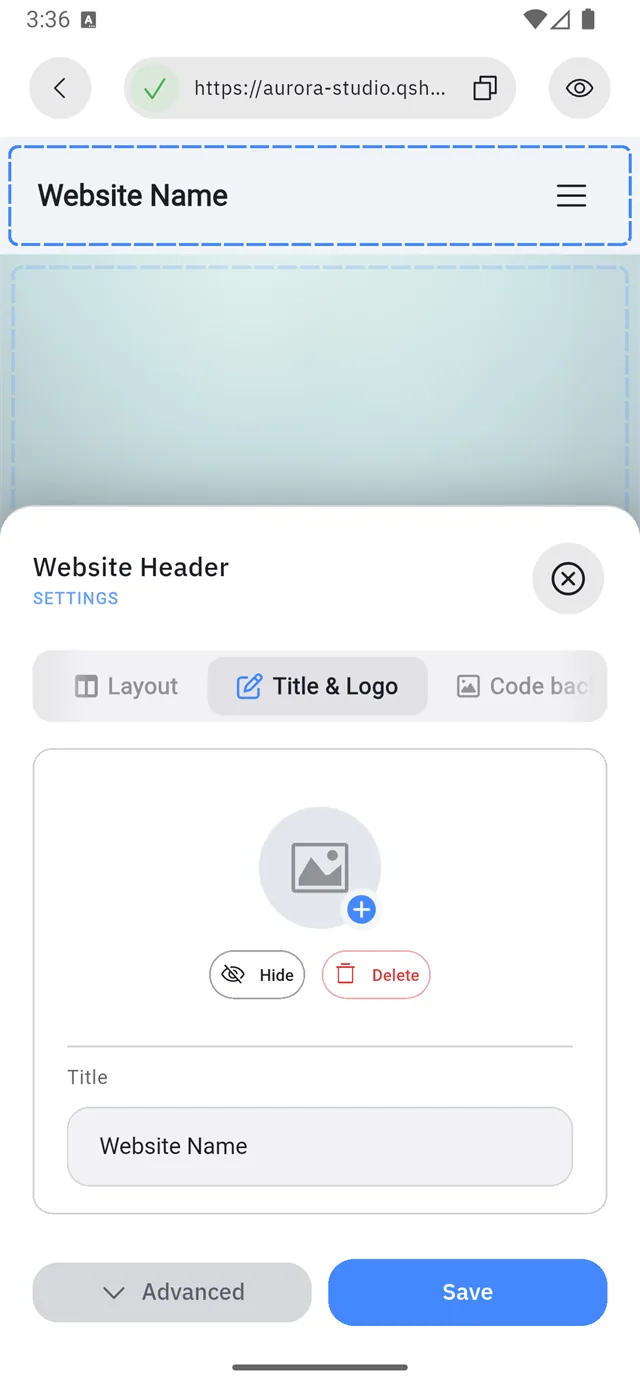
Tabs: Layout, Title & Logo, Code background. This is where the name at the top of your site is set, and where you upload a logo.
The hero section

Tabs: Code background, Title, Text, Button 1, Button 2 — one tab per piece, each with its own Change Color and Hide.
Hiding a hero button removes it from your site without deleting the other.
Checking your work
Tap the eye in the address bar to preview.


The dashed blue outlines vanish — that is your site exactly as a visitor sees it. Tap the eye again to return to editing.