Create your first website
On a fresh account the home screen is empty and offers one button: Create new website.
1. Name it and claim its address
A sheet opens with three things: a logo, a Website Name, and a Domain.
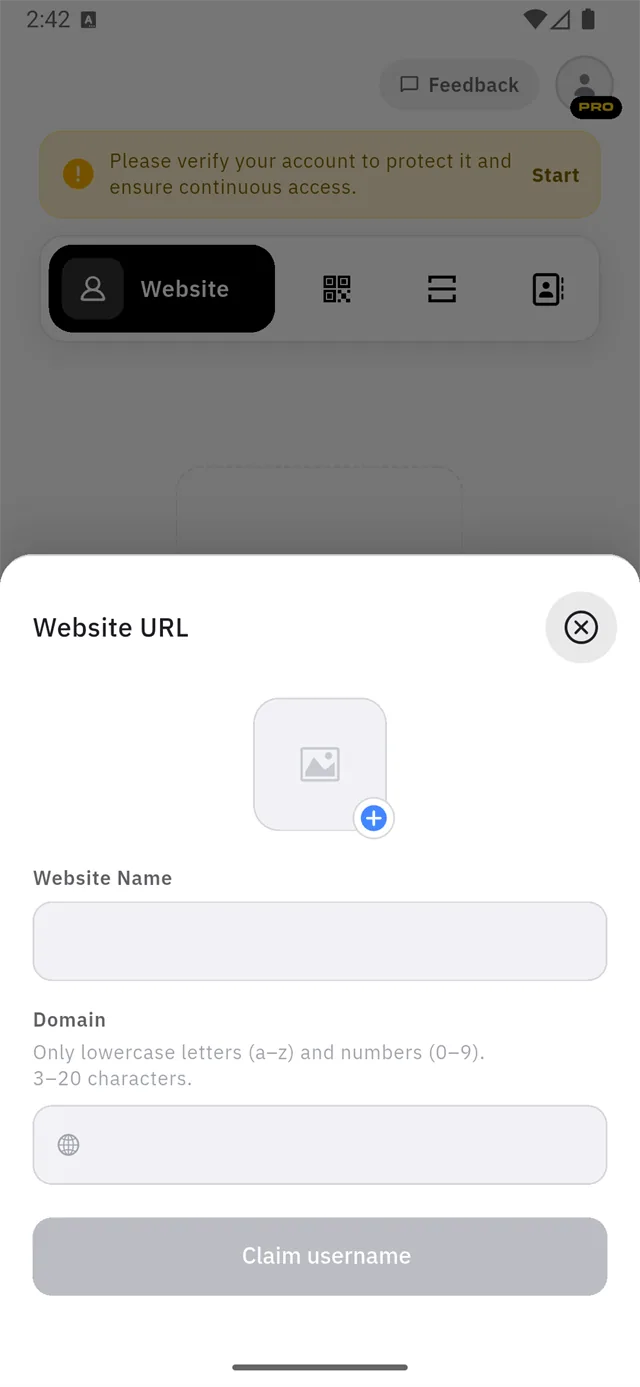
The domain is the address people will visit:
https://your-domain.qshot.com
Domain rules, shown in the app itself:
- lowercase letters
a–zand numbers0–9only - 3 to 20 characters
:::warning The domain writes itself from the name
As you type the Website Name, the app fills the Domain for you —
Aurora Studio becomes aurora-studio.
That means editing the name again overwrites whatever you typed in the domain. If you want a domain that differs from your name, set the name first, and change the domain last. :::

Tap Claim username. A green check appears next to the address once it is yours.
:::tip The address is not permanent You can change it later from the same sheet — tap the address bar at the top of the editor. Anyone holding the old link will no longer reach you, so change it before you print it on anything. :::
2. You land in the editor

Every new site starts with the same skeleton:
| Part | What it is |
|---|---|
| Address bar | Your live URL, a copy button, and a preview eye |
| Website Name | The header at the top of your site |
| Hero | A background image, a headline, a tagline, two buttons |
| Title / Bio | Two empty text blocks |
| Add Block | Everything else you can add |
| Choose a Template | Whole-site designs, at the bottom |
The dashed blue outlines mark editable regions. They are guides for you and do not appear on your published site.
3. Careful with the back button
Leaving the editor with unsaved edits raises this:
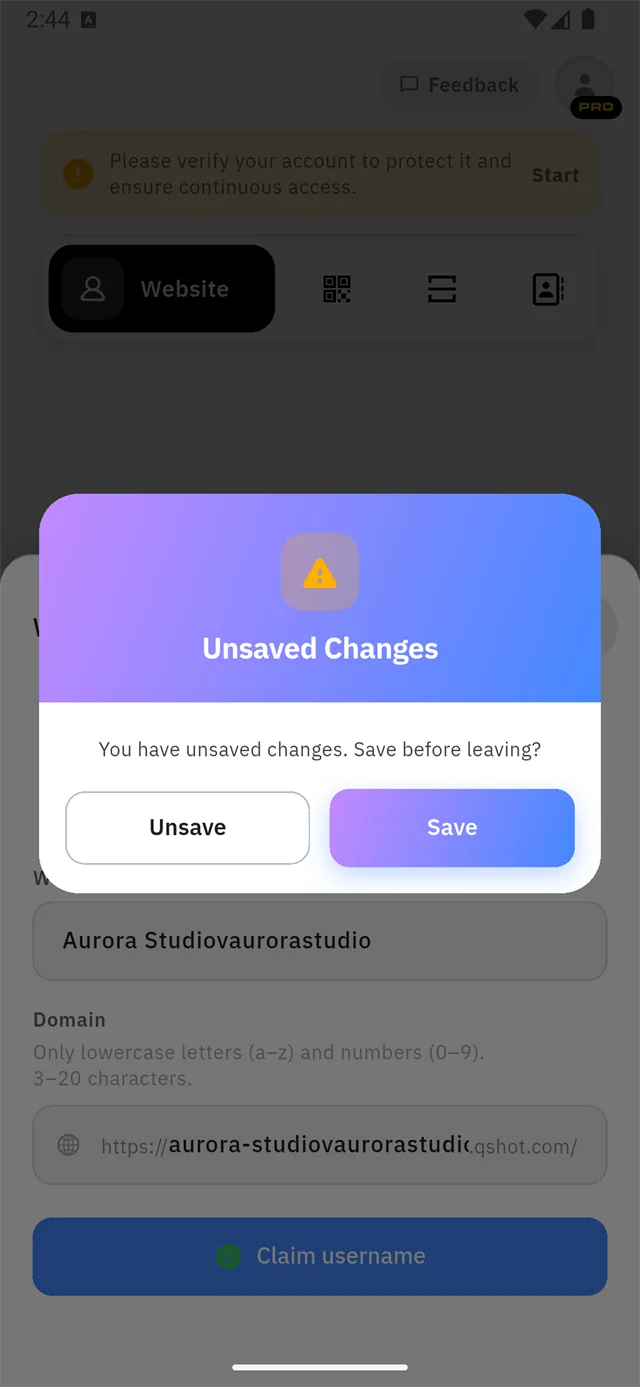
Unsaved Changes — You have unsaved changes. Save before leaving?
Save keeps your work. Unsave discards it. There is no undo after discarding.