The blocks in detail
Blocks lists what exists. This page covers what each one actually asks you for.
Their editors are not identical
The four-tab layout — Sort · Layout · Theme · Settings — is the maximum, not the standard. Most blocks show fewer.
| Block | Tabs |
|---|---|
| Social Links, Button | Sort · Layout · Theme · Settings |
| External Links, Reviews, Video Links, Products, Image | Sort · Layout · Settings |
| Location | Edit · Settings |
| Title, Text, Upload Video, Embed, Booking, Lead Form, Divider, Space | One screen, no tabs |
:::tip A missing tab is not a fault A block with no Theme tab has nothing themeable. Colours for those live under Settings, or on the item itself. :::
External Links

Three tabs — no Theme. Tap + to add a link.
Each link takes an icon, a URL, a Title, and an optional Description.
Two rules that stop you saving
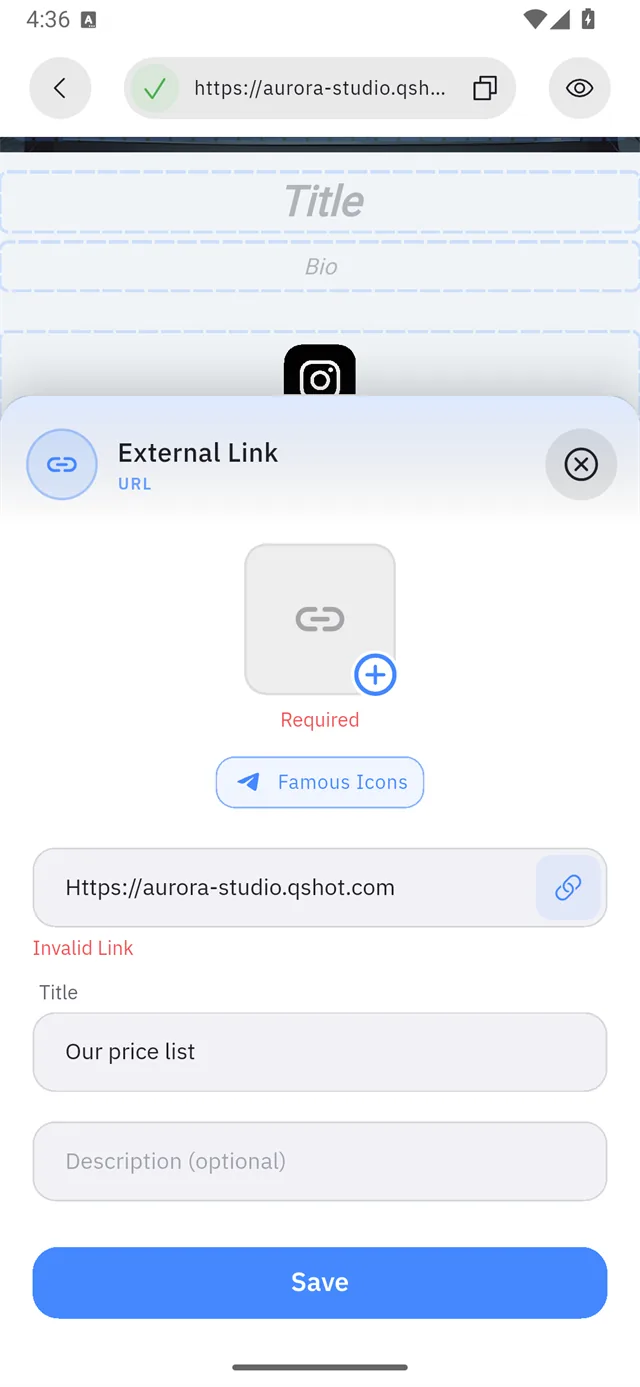
The icon is required. A red Required sits under the empty icon box until you choose one. There is no icon by default.
The address check is case-sensitive. A lowercase https:// is fine, and so
is no scheme at all. A capitalised Https:// is rejected with Invalid
Link — the scheme is the only part of the address where case matters.
| ❌ Rejected | ✅ Accepted |
|---|---|
Https://aurora-studio.qshot.com | https://aurora-studio.qshot.com |
HTTPS://aurora-studio.qshot.com | aurora-studio.qshot.com |
That capital is not a typo you made. The field asks Android for sentence-case, so the keyboard capitalises the first letter the moment you start typing — producing an address the app then refuses.
:::warning One field, three blocks
Button and Products use the same URL field with the same check. Either
leave https:// off entirely, or check the h is lowercase before saving.
:::
The icon library
Famous Icons opens a ready-made set — no upload needed.
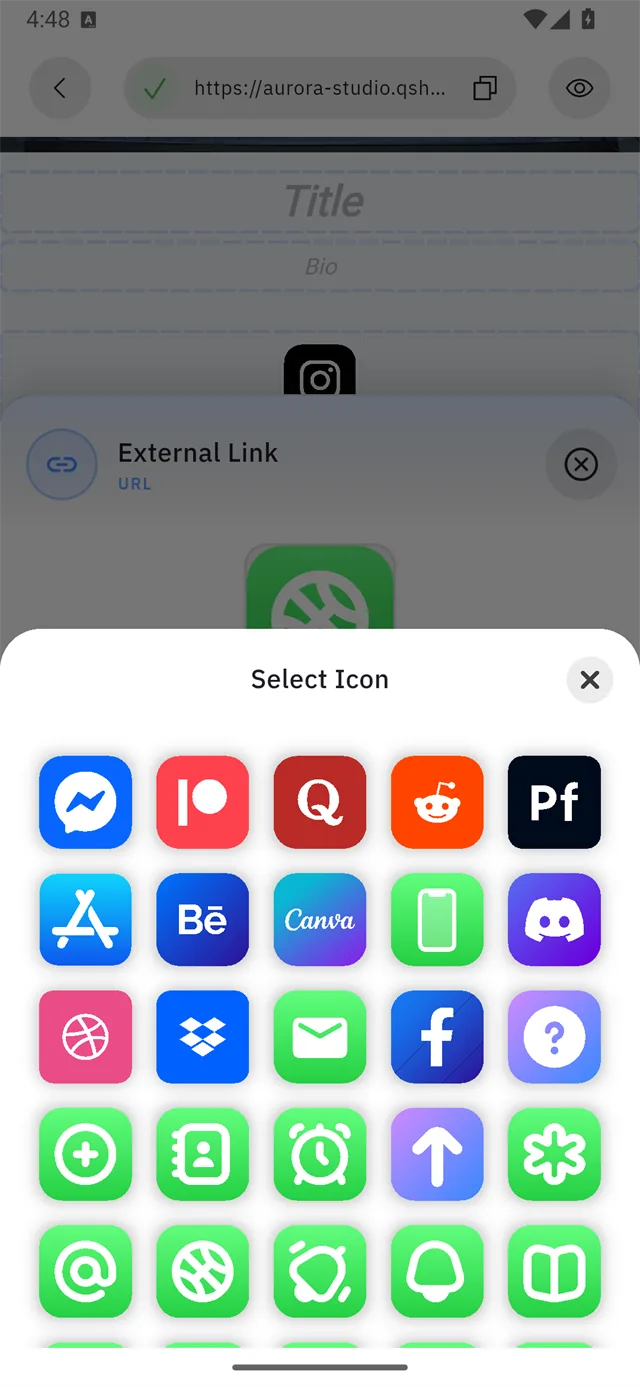
Messenger, Patreon, Quora, Reddit, App Store, Behance, Canva, Discord, Dribbble, Dropbox, Facebook and dozens more, plus plain shapes — mail, phone, alarm, bell, book, arrow.
The + on the icon box uploads your own image instead.
Reviews
Real testimonials do more for a small business than any amount of copy. The Reviews block gives you two ways to fill it.
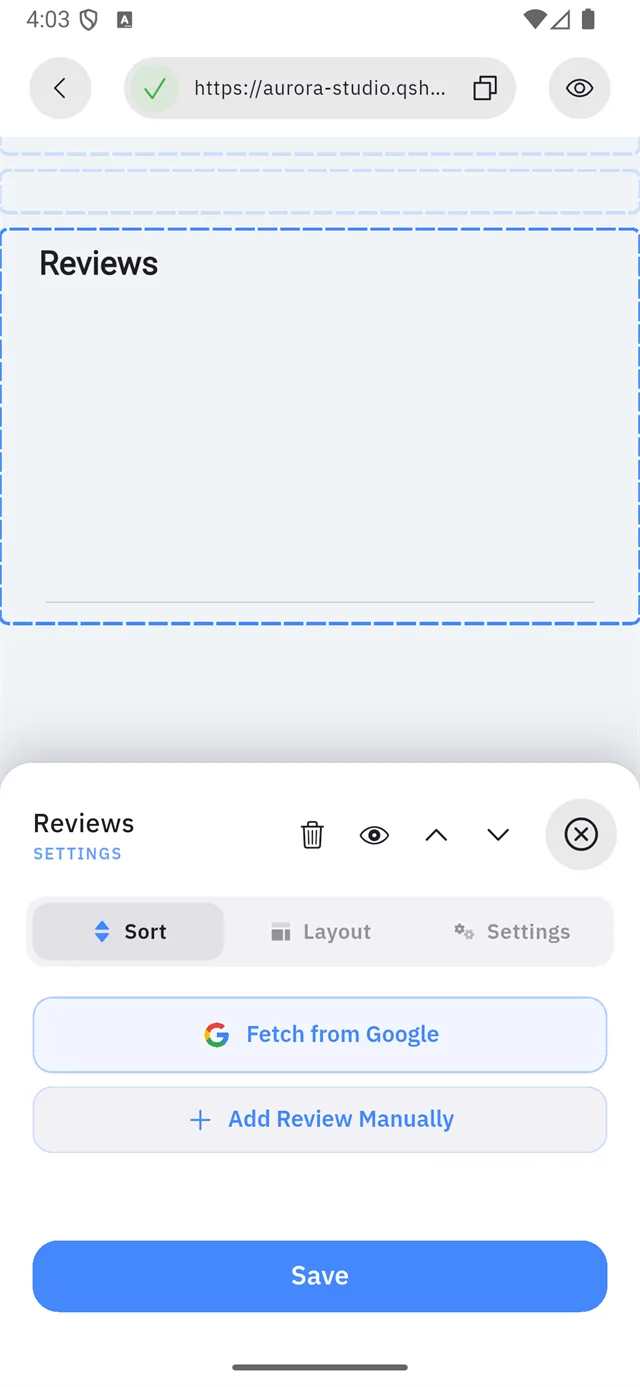
| Button | What it does | |
|---|---|---|
| 1 | Fetch from Google | Imports the reviews already on your Google listing |
| 2 | Add Review Manually | You type one in yourself |
Fetch from Google
This is the one worth using if you have a Google Business listing — the reviews are already written, already trusted, and you do not retype them.
Tapping it opens a map, not a text box:
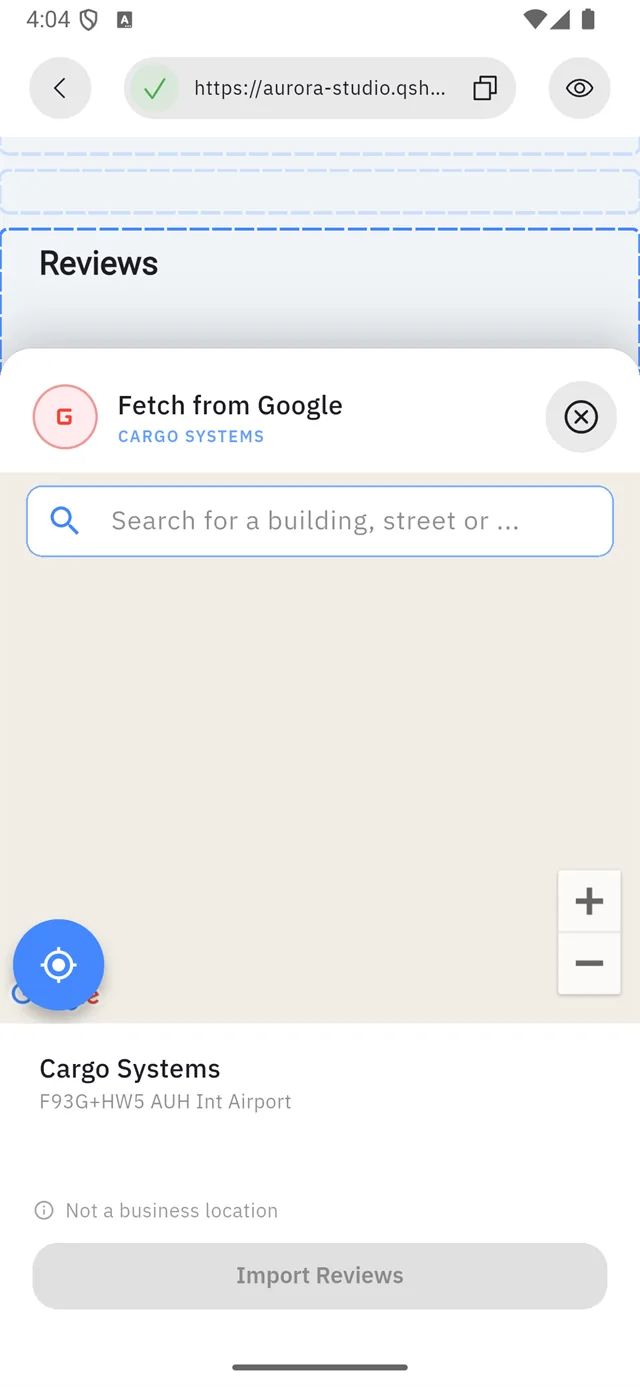
- Move the map, or tap the locate me button at the bottom left, until the pin sits on your business.
- The name and address of whatever is under the pin appear at the bottom.
- When it shows your business, tap Import Reviews.
:::warning Watch the line under the address If the pin is on a spot Google does not know as a business, the sheet says "Not a business location" and the import will bring nothing back. Move the pin until the real business name appears. :::
:::tip Fetching again later Reviews are copied at the moment you import — new ones do not appear on their own. Come back and fetch again to pick them up. The button has a cooldown, so it will not let you hammer it. :::
Add Review Manually
For reviews that live somewhere Google cannot see — a WhatsApp message, an email, a card someone left. You supply the reviewer's name, the text, a star rating, a "time ago" label, and optionally an avatar.
:::note Write what they actually said A manual review is your own typing, so nothing stops you inventing one. Do not. A visitor who senses invented praise trusts nothing else on the page either. :::
Button
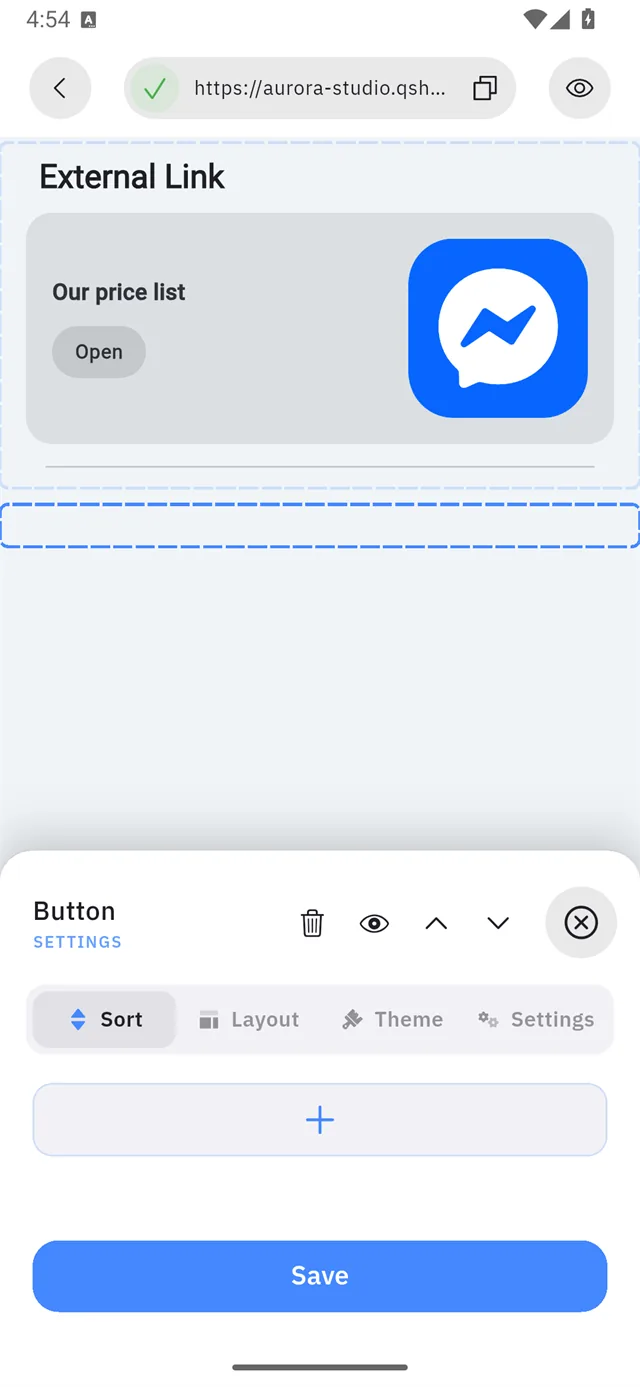
The full four tabs. + adds a button.
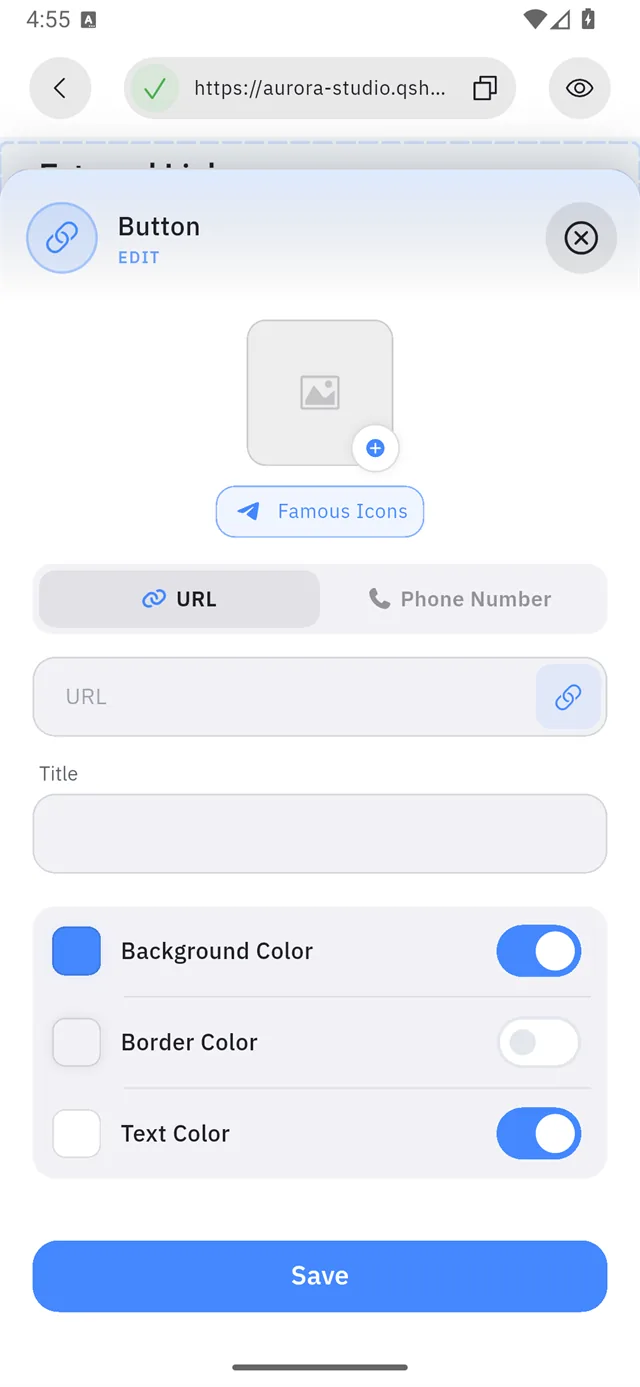
| Setting | Notes |
|---|---|
| Icon | Your own, or from Famous Icons |
| URL / Phone Number | A two-way switch — see below |
| Title | The label on the button |
| Background Color | The fill |
| Border Color | The outline |
| Text Color | The label |
URL or phone
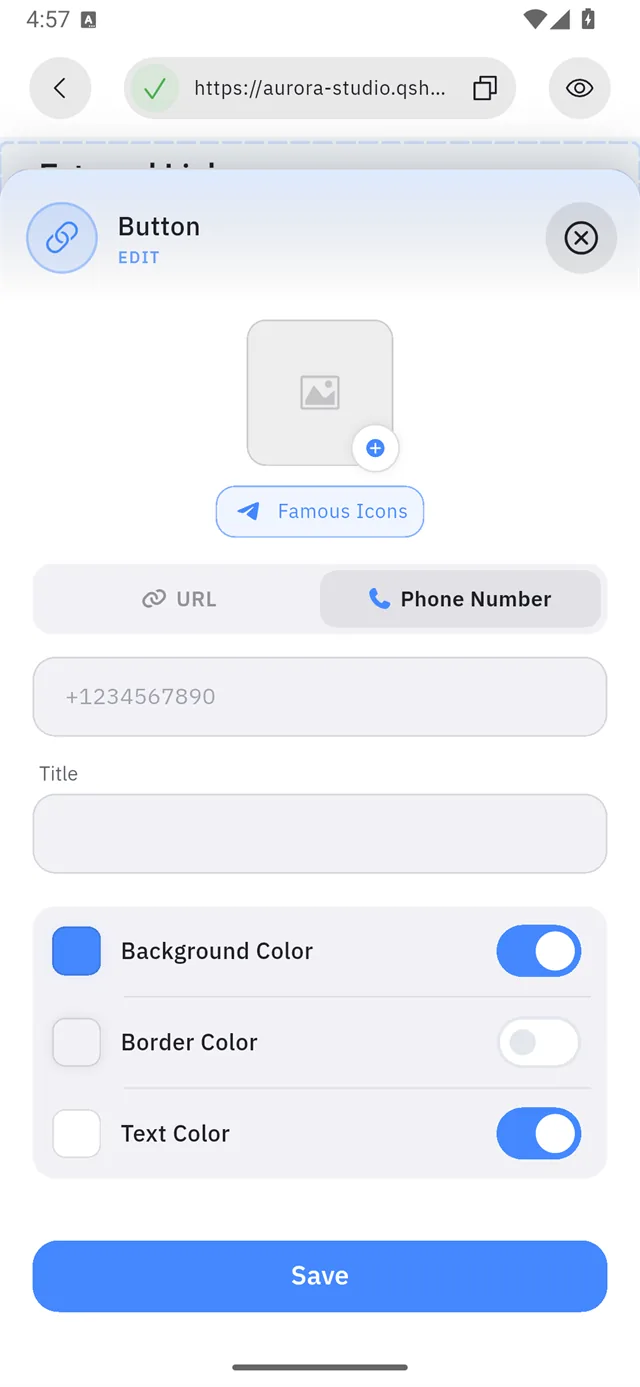
Phone Number turns the button into a dialler: tapping it on your site opens the visitor's phone app with your number ready.
Use it for Call us. Use URL for everything else.
:::tip Three colours, not one Background, border and text are set separately. A common trick: transparent background with a coloured border for a secondary button beside a solid primary one. :::
Video Links
Three tabs — no Theme. + adds a video, and the editor is a single field:
Video Link —
https://youtube.com/...
What counts as a YouTube link
The app pulls an 11-character video id out of whatever you paste. All of these work:
https://www.youtube.com/watch?v=aqz-KE-bpKQ
https://youtube.com/embed/aqz-KE-bpKQ
https://youtu.be/aqz-KE-bpKQ
youtu.be/aqz-KE-bpKQ
m.youtube.com is fine too. What is not fine is a channel link, a playlist
without a video, or a shortened link from some other service.
:::danger This field accepts a link it cannot play
The form's check ignores capital letters, but the part that finds the video id
does not. So an address starting Https:// — which is what Android's keyboard
produces if you let it capitalise the first letter — saves without any error
and then shows an empty player.
There is no warning. The block simply never plays anything.
The same trap in External Links at least
tells you; here it is silent. Check the h is lowercase, or leave https://
off entirely.
:::
Embed Code
This block does not go straight into an editor. It asks what you are embedding first:
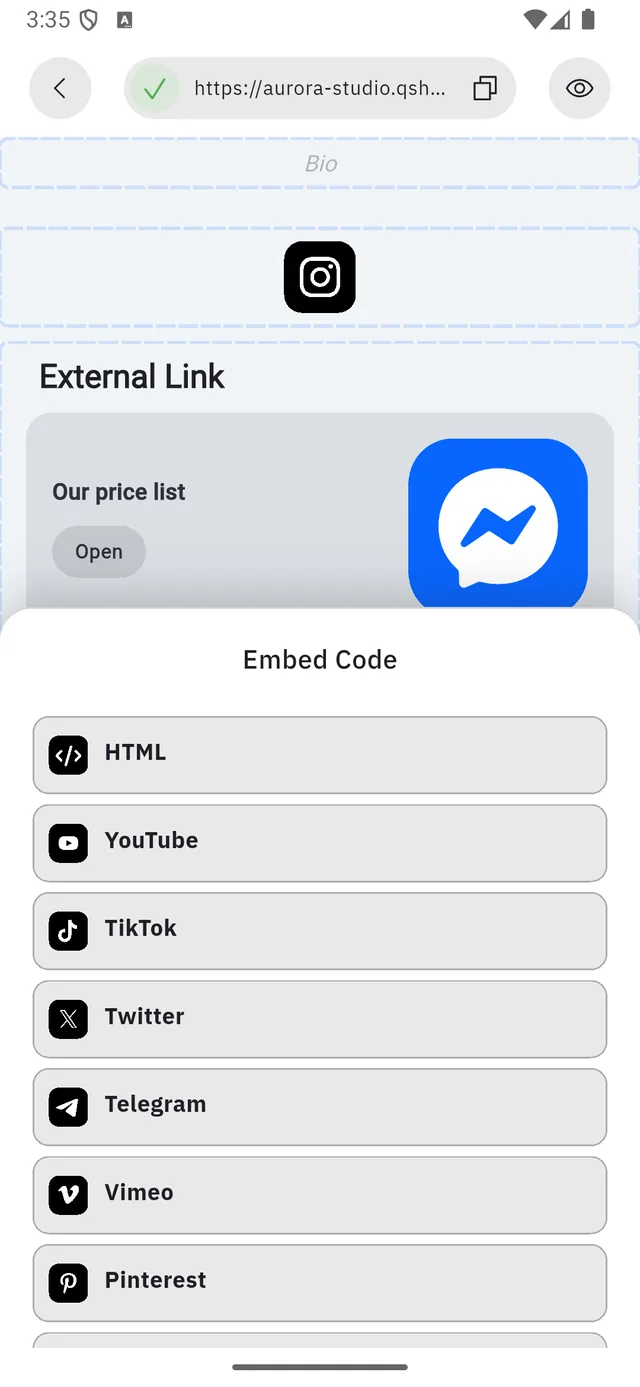
HTML · YouTube · TikTok · Twitter · Telegram · Vimeo · Pinterest · Behance
Everything after HTML is a ready-made form: you give it a link or a username and Qshot builds the embed. 1 is the exception.
The HTML option
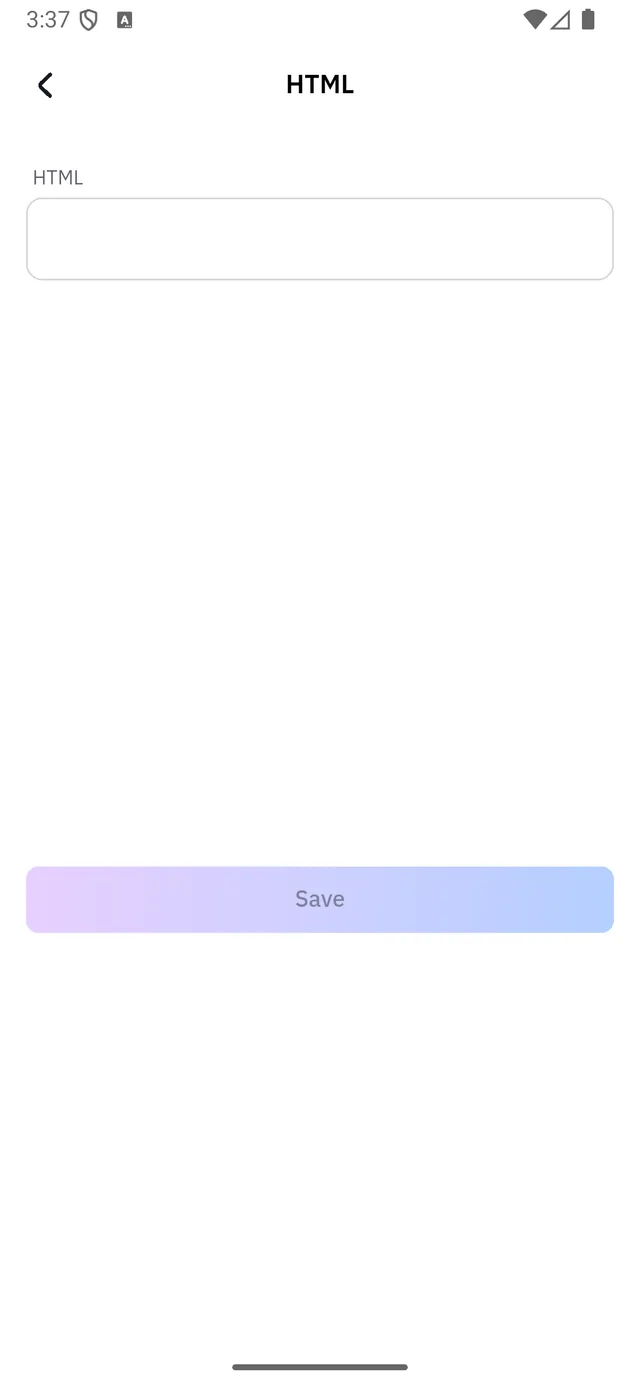
One large box, and whatever you paste in it goes on your page. This is where a booking widget, a mailing-list form or a map from another service goes.
:::warning Paste only code you understand Embed code runs on your page, in front of your visitors. A snippet from a service you recognise — Calendly, Mailchimp, Google Maps — is ordinary. A snippet from a forum post is not.
If you cannot say what a line of it does, do not put it on a page carrying your name. :::
:::note Cancelling the picker adds nothing Backing out of the provider list means no block was added. Social Feed, Upload Video and Images all ask a question first in the same way. :::
Images
This block does not appear and wait for you. It walks you through four screens before a picture is on the page, and the first one surprises people.
Step 1 — pick a layout, before picking a picture
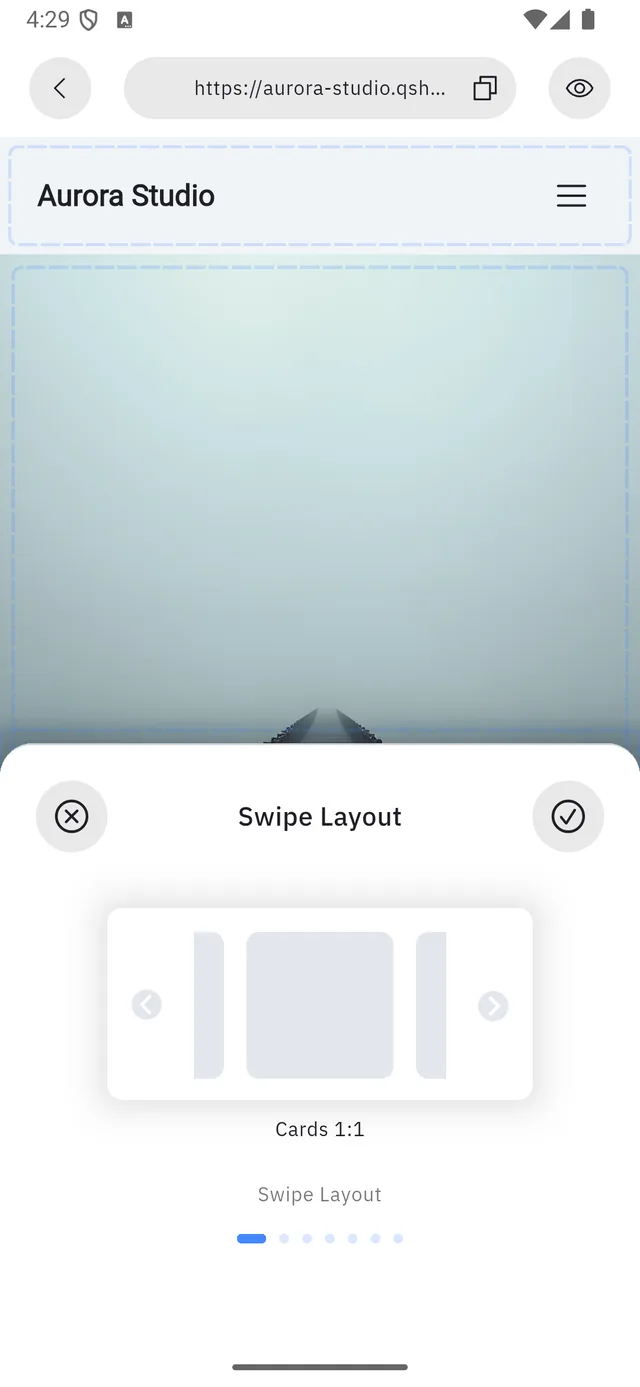
Swipe Layout offers seven arrangements — Cards 1:1, Vertical 9:16 and five more. Swipe sideways; the dots under the card show where you are.
✕ cancels and adds nothing. ✓ accepts and creates the block.
:::note The layout is a decision about shape, not about the photo It sets the frame every picture in this block will be cut to. A portrait photo in a Cards 1:1 layout gets its top and bottom trimmed, and you choose the trim on the next screen but two. :::
Step 2 — the block editor
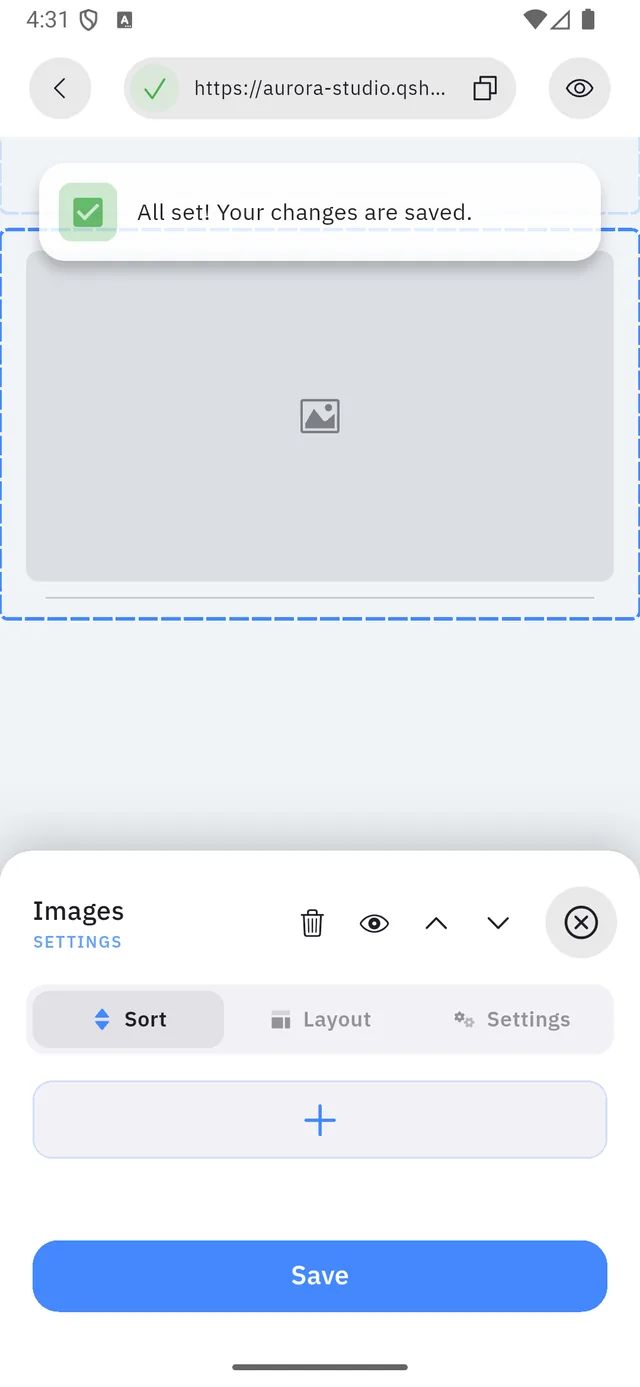
Three tabs — no Theme — and a + that opens your phone's photo picker. The block saves itself the moment the layout is accepted, which is why All set! Your changes are saved. appears before you have added anything.
Step 3 — crop

Drag the corners of the frame; the shape is fixed by the layout you picked in step 1. ✓ at the top right accepts, the arrow at the top left goes back.
Step 4 — a filter
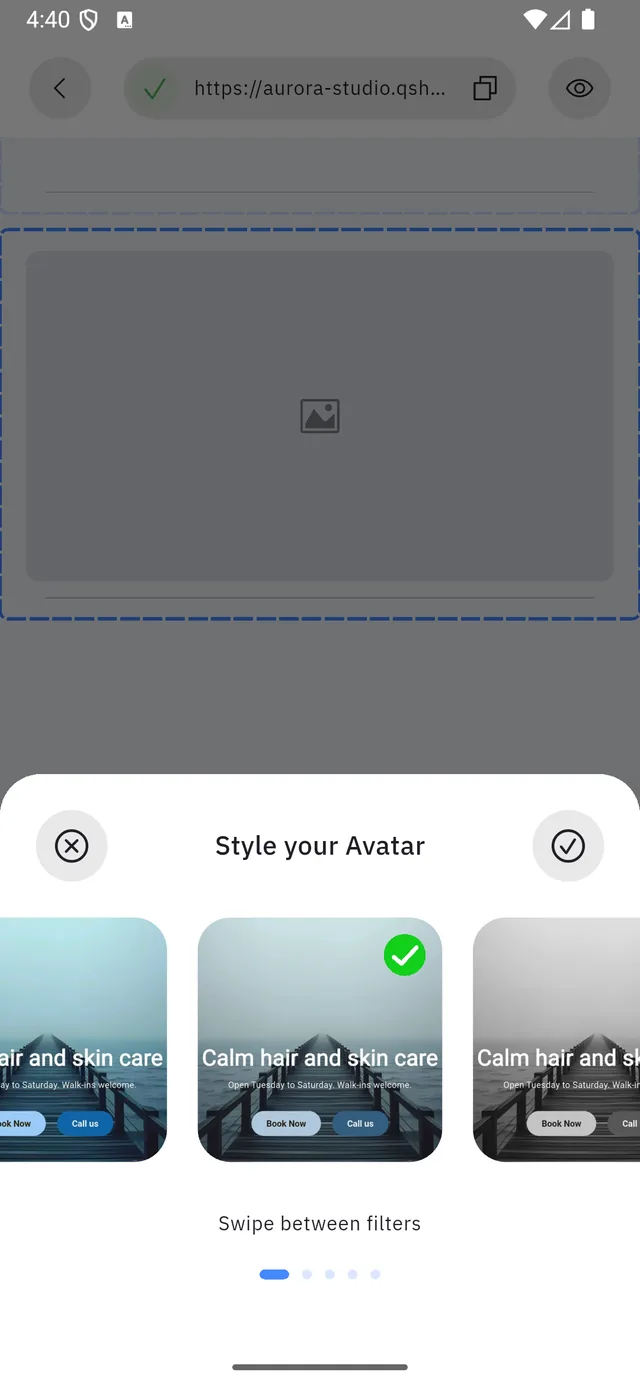
Five filters, swiped between, with a green tick on the one in use. The middle one is the original.
:::note The title says "Avatar" This sheet is shared with the profile-picture flow and keeps its wording there. You are styling the picture you just cropped, not your avatar. :::
Then Save in the block editor. The picture is on the page.
Social Feed
Like Embed Code, this asks which network before it appears.
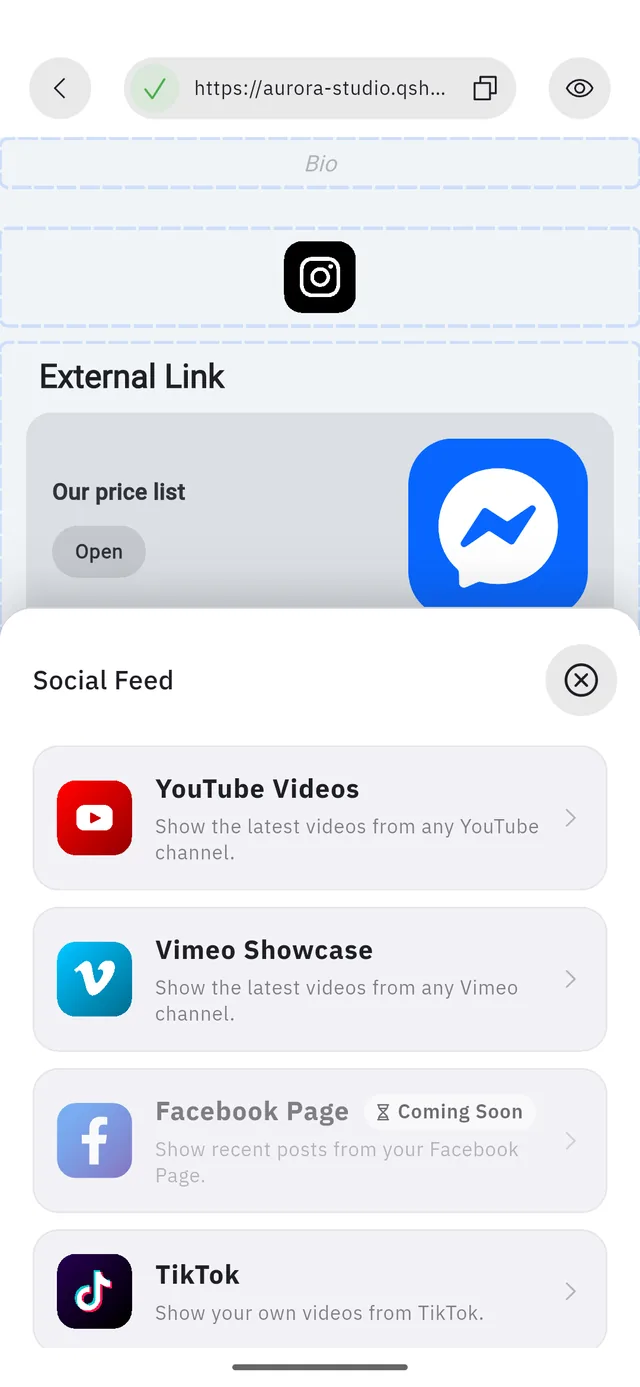
| Network | Shows |
|---|---|
| YouTube Videos | The latest videos from any channel |
| Vimeo Showcase | The latest videos from any Vimeo channel |
| TikTok | Your own TikTok videos |
Two of the five are not built yet
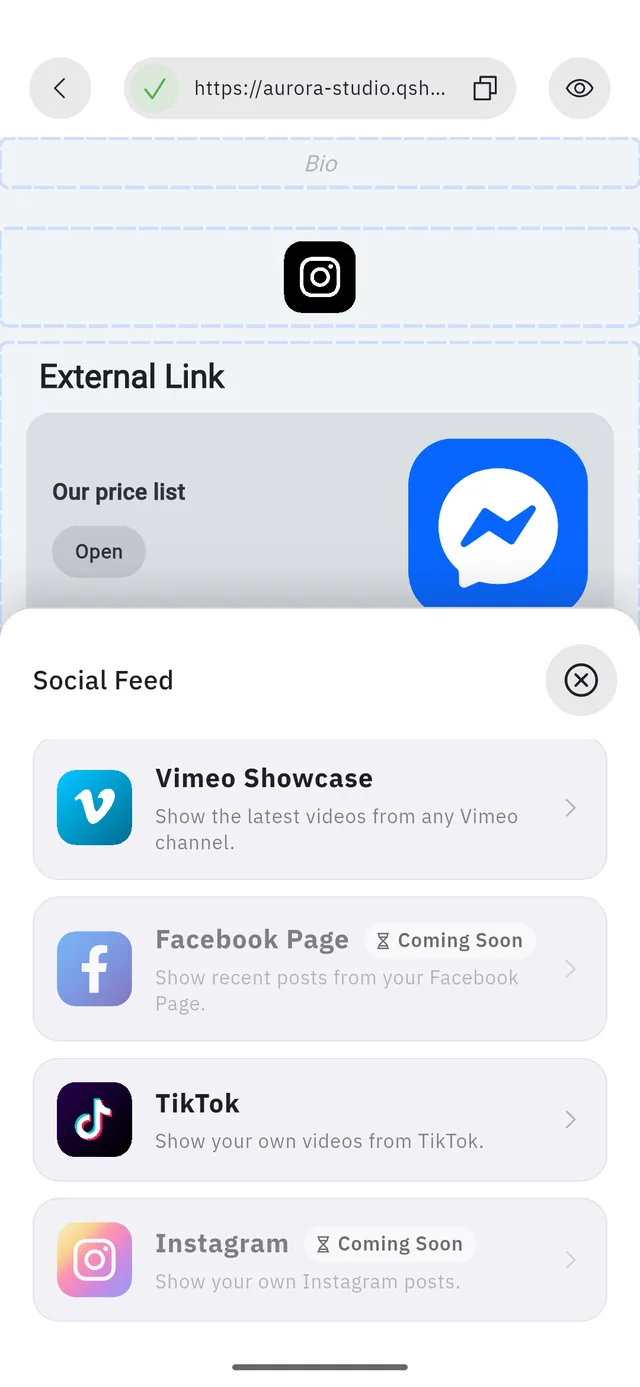
Facebook Page and Instagram are greyed out and carry a Coming Soon badge. They are in the list, but they do not work.
:::warning Do not plan a page around them If your plan was "the site shows my Instagram", that is not available today — in this block or anywhere else in the app. Link to the profile with External Links instead, or embed individual posts with Embed Code. :::
Layout blocks
These need no setup at all — tap and they appear.
| Block | The one setting it has |
|---|---|
| Title | Alignment and size |
| Text | A rich-text toolbar |
| Divider | Thickness |
| Space | Height |
Blocks that ask before they appear
Three blocks open a chooser before landing on your page:
| Block | Asks first |
|---|---|
| Embed Code | Which provider |
| Social Feed | Which network — then an OAuth sign-in |
| Upload Video | The video file and its thumbnail |
Cancelling the chooser means the block is never added.