Verify your email
After you create an account with an email address, Qshot sends a verification message. The app works before you act on it, but a yellow banner stays at the top of the home screen:
Please verify your account to protect it and ensure continuous access.
Why it matters
A verified address is what proves the account is yours. Without it you cannot recover your password if you forget it, and access may be restricted later.
Steps
- Open your inbox.
- Find the message from Qshot.
- Tap the verification link inside it.
- Return to the app.
The email never arrived
Ask for a new one from inside the app:
- Tap your account picture at the top of the home screen.
- On the Settings page, tap Verify Your Account → Start.
- An Account Not Activated! notice appears — tap Send.
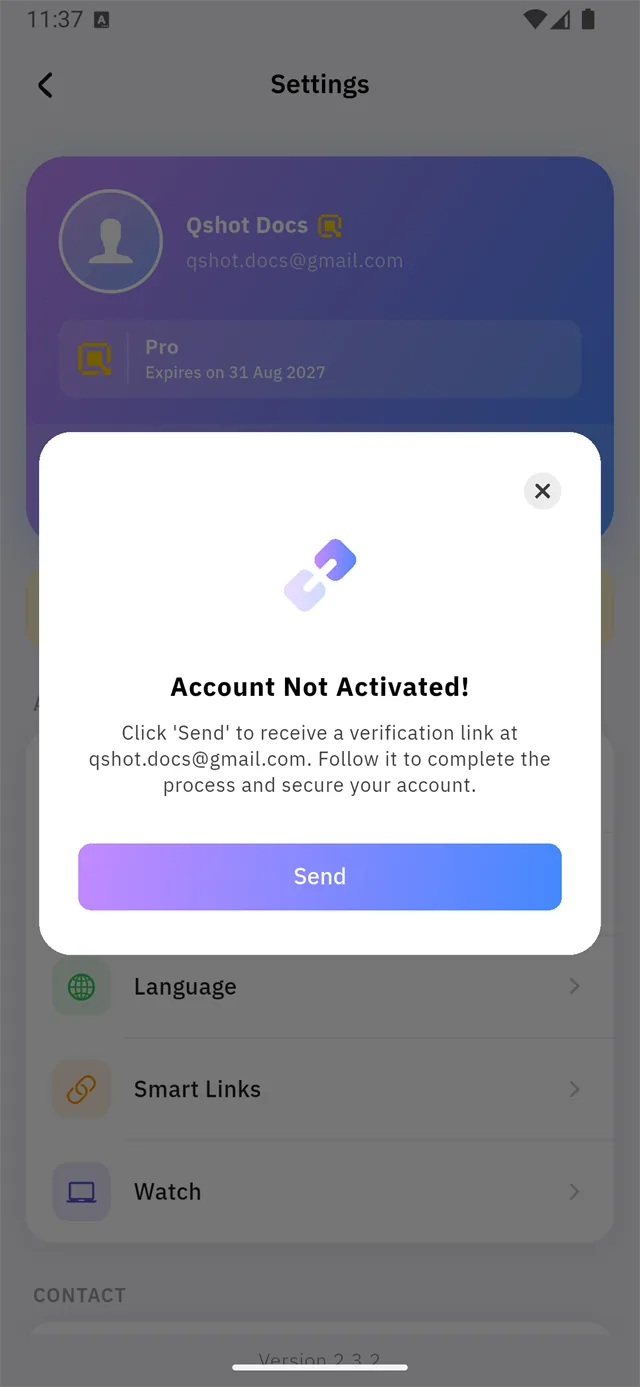
Check your Spam folder as well.
The banner is still there after tapping the link
Try these in order:
- Close the app completely and reopen it. Account status is read at startup.
- Sign out and back in. This fetches fresh status from the server.
- Open the link in a browser on a computer.
:::warning Why a computer? If the Qshot app is installed on your phone, Android may hand the verification link to the app instead of the browser. If that app is signed in to a different account, verification fails with no error message.
Opening the link in a desktop browser avoids this entirely. :::
If the problem persists, contact us from Settings → Contact via Email.