Create an account
There are two ways in: your email address, or your Google account.
Option 1 — with your email
1. Open the sign-up screen
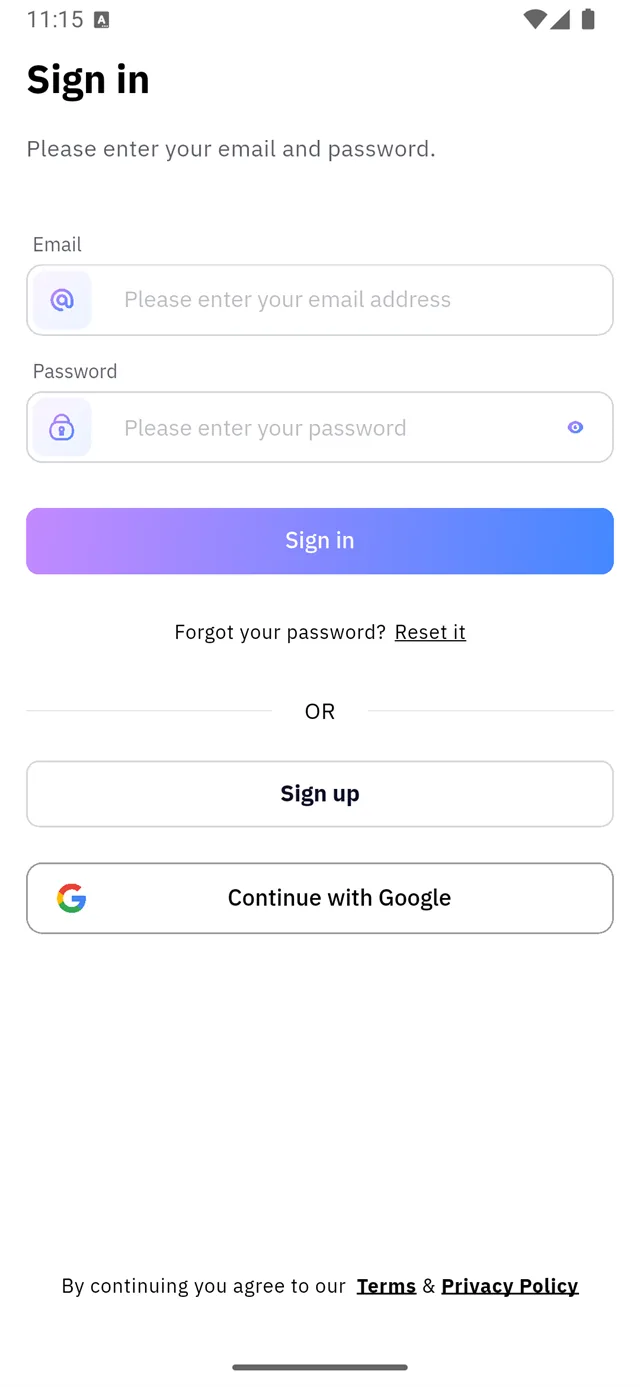
When you open the app, the Sign in screen appears. Scroll down and tap Sign up.
2. Fill in your details
The Create an account screen has three fields:
| Field | What to enter |
|---|---|
| Name | Your name as you want it displayed |
| An address you can open — you will need it to verify | |
| Password | A password |

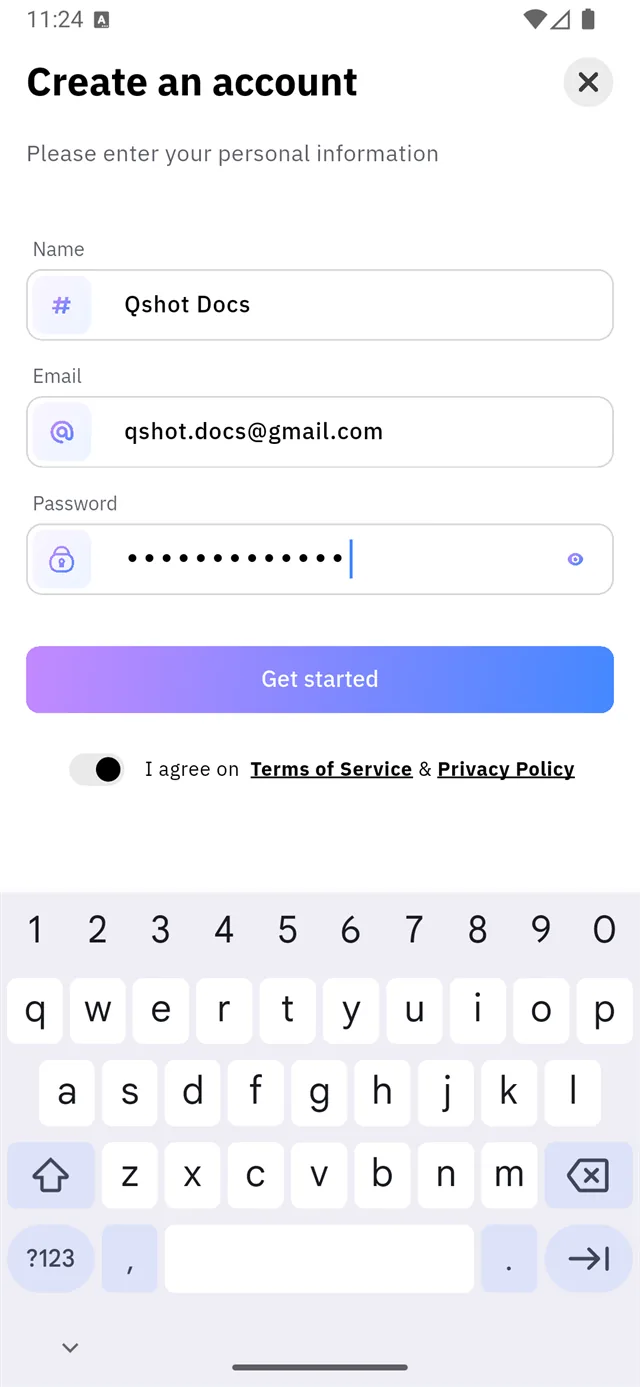
:::tip Tap the eye icon The icon at the end of the password field reveals what you typed. Use it to check before continuing. :::
3. Agree to the terms
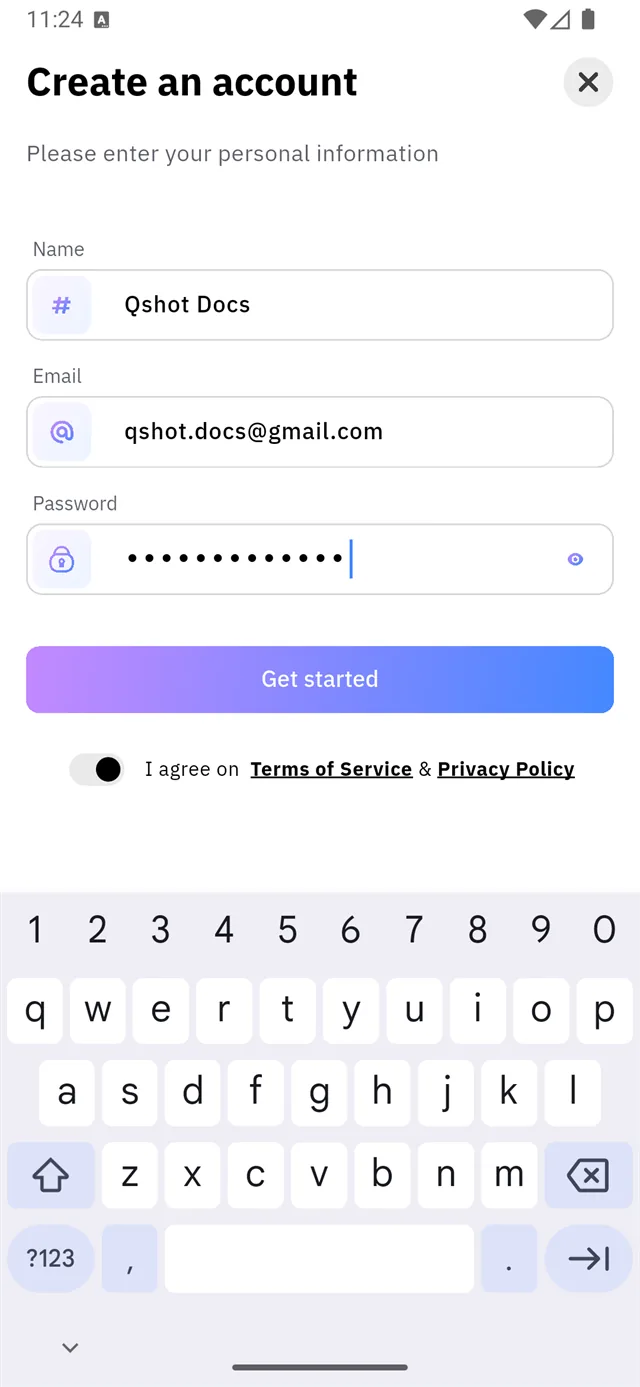
This step is easy to miss. Below the Get started button there is a small
toggle next to I agree on Terms of Service & Privacy Policy.
Turn the toggle on.
If you tap Get started before turning it on, this appears:
Action required Please review and agree to our Privacy Policy and Terms of Service to proceed.

:::warning Tap the toggle, not the words
Terms of Service and Privacy Policy are links that open your browser.
The toggle is the small pill marked 1 below, at the far left of the row —
tap that and nothing else.
:::
4. Tap Get started
A confirmation appears:
Almost there, Verify Your Account. We've sent a verification email to
your address.
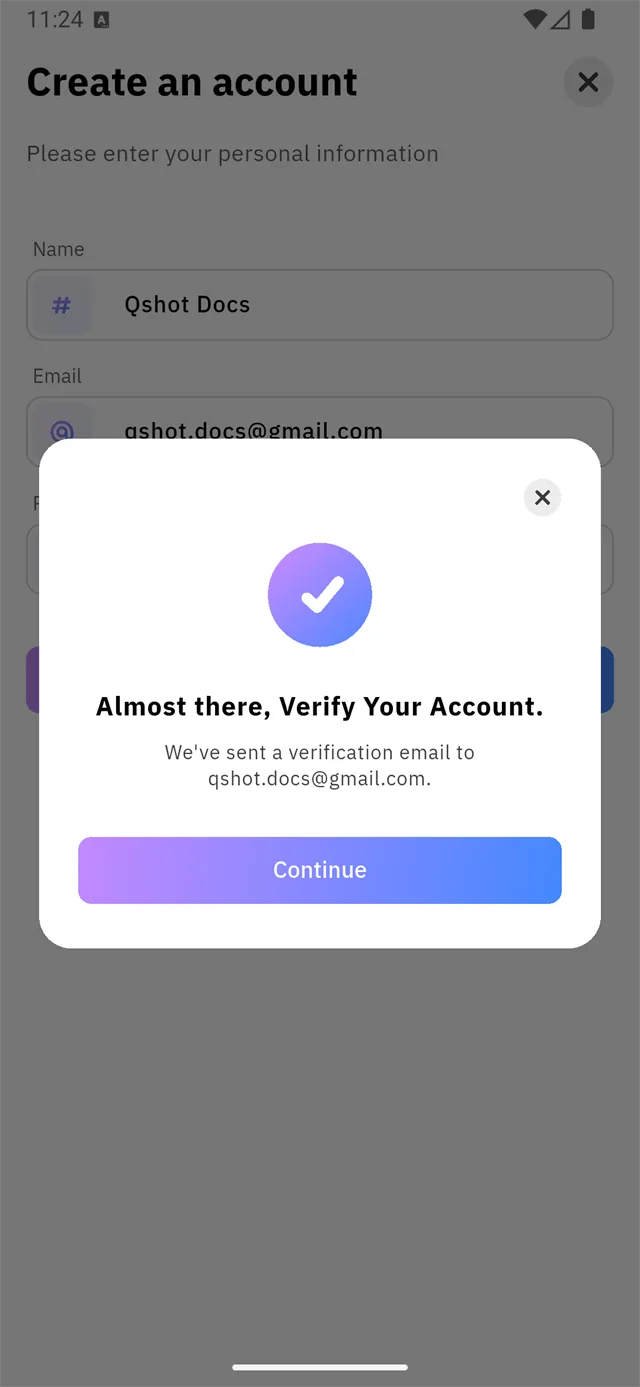
Tap Continue.
5. Allow notifications
The app asks for notification permission.
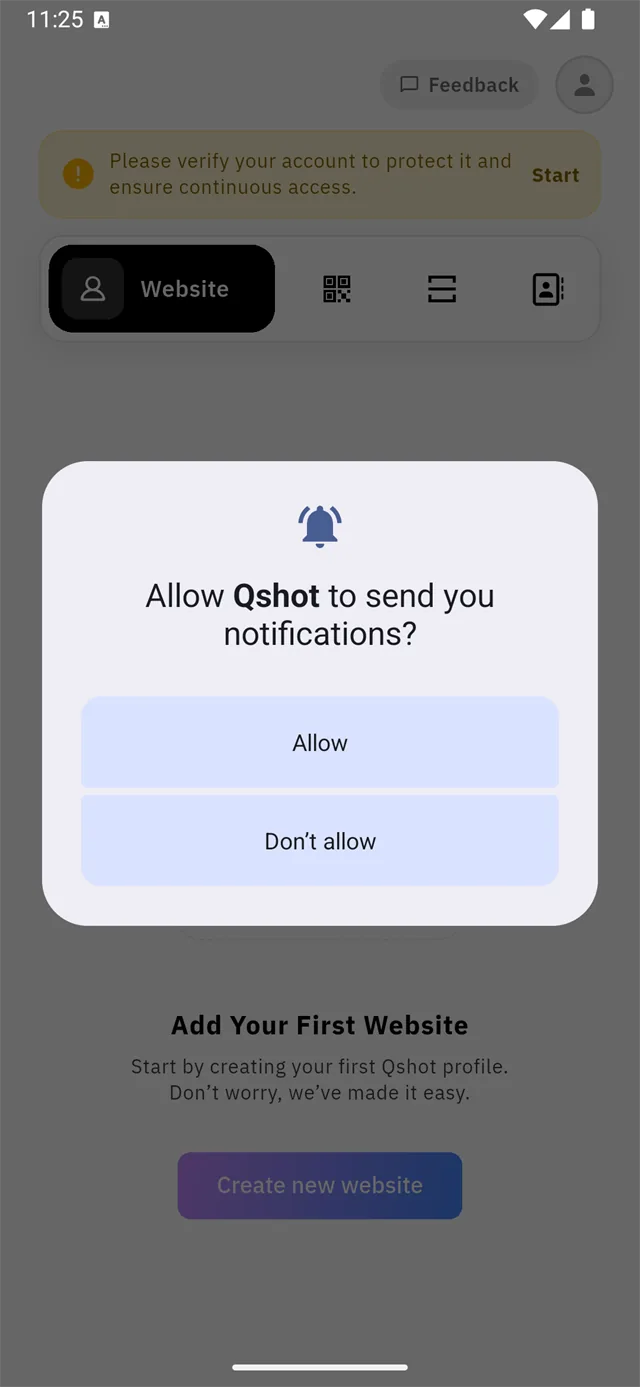
We recommend allowing it. Notifications are how the app tells you about a new booking or a message from a visitor. You can change this later in your phone's settings.
6. You're in
The home screen appears, empty, with a Create new website button.

Your account works even before you verify your email — but a yellow banner stays at the top until you do. See Verify your email.
Option 2 — with Google
On the sign-in screen, tap Continue with Google and pick your account.
No password, and no email to verify.
:::note iPhone only Continue with Apple appears on iPhones. On Android there is only the Google button. :::