QR codes
Your site already has a QR code — that one is covered in Sharing. This chapter is about the other codes: standalone ones that point wherever you like, whether or not you have a site.
They live in the Generate QR tab on the home screen.
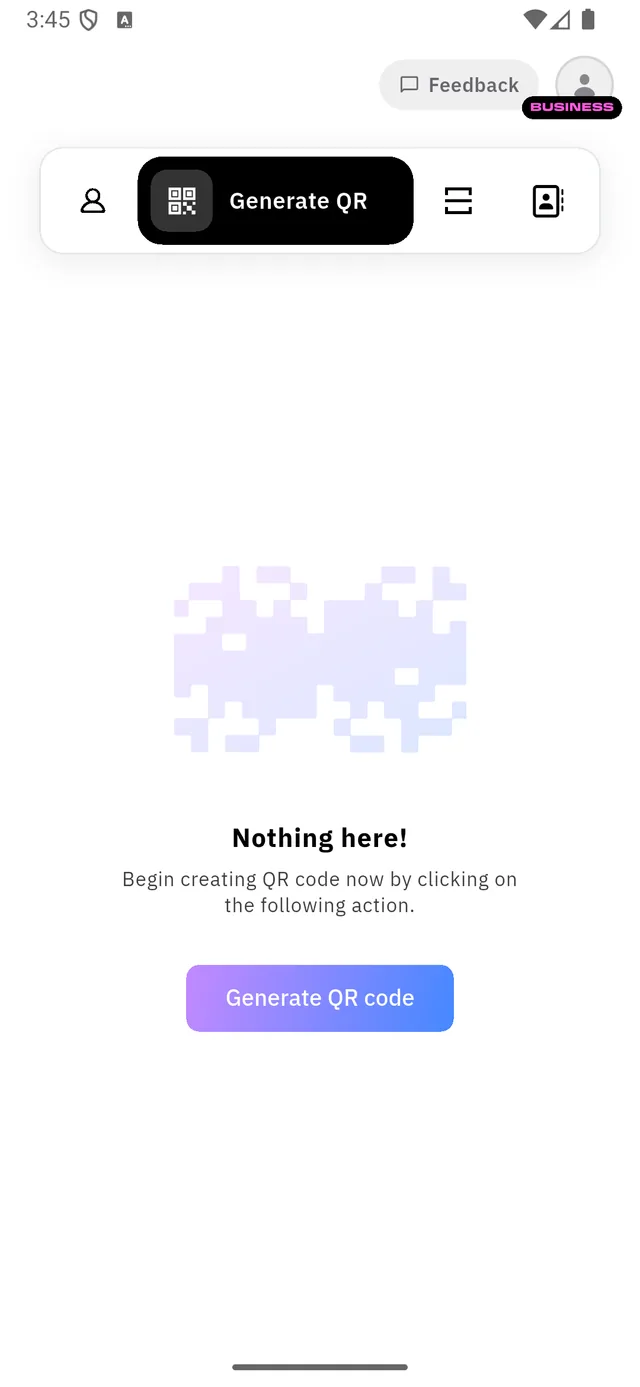
Static or dynamic — decide this first
Tap Generate QR code and the first thing you see is not a list of types but a choice between two kinds:
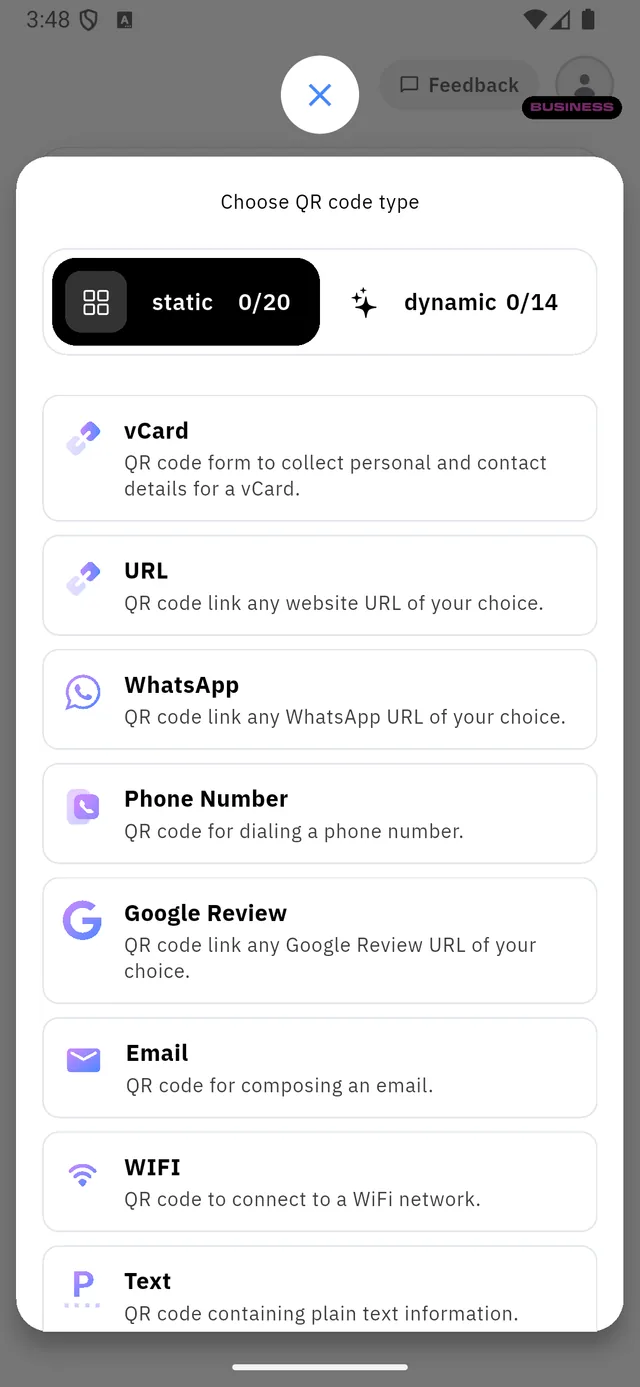
| Tab | What it means | |
|---|---|---|
| 1 | static | The address is printed into the pattern itself |
| 2 | dynamic | The pattern points at Qshot, which forwards to your address |
The two numbers beside each name are how many you have made out of how many
your plan allows — 0/20 static and 0/14 dynamic on the account above.
:::tip The rule of thumb: can you reprint it? A dynamic code can be re-pointed later and counts its scans. A static one cannot — changing where it goes means printing a new code.
So: anything printed on something you cannot cheaply reprint — a card, a sign, a menu, a vehicle — should be dynamic. Static is for the disposable. :::
The types
Static
vCard · URL · WhatsApp · Phone Number · Google Review · Email · WIFI · Text · SMS · Telegram
vCard is the interesting one: it holds the contact details themselves, so a scan offers to save you to the phone book with no internet at all.
WIFI is the other: it carries the network name and password, and scanning joins the network. Useful on a café table tent.
Dynamic
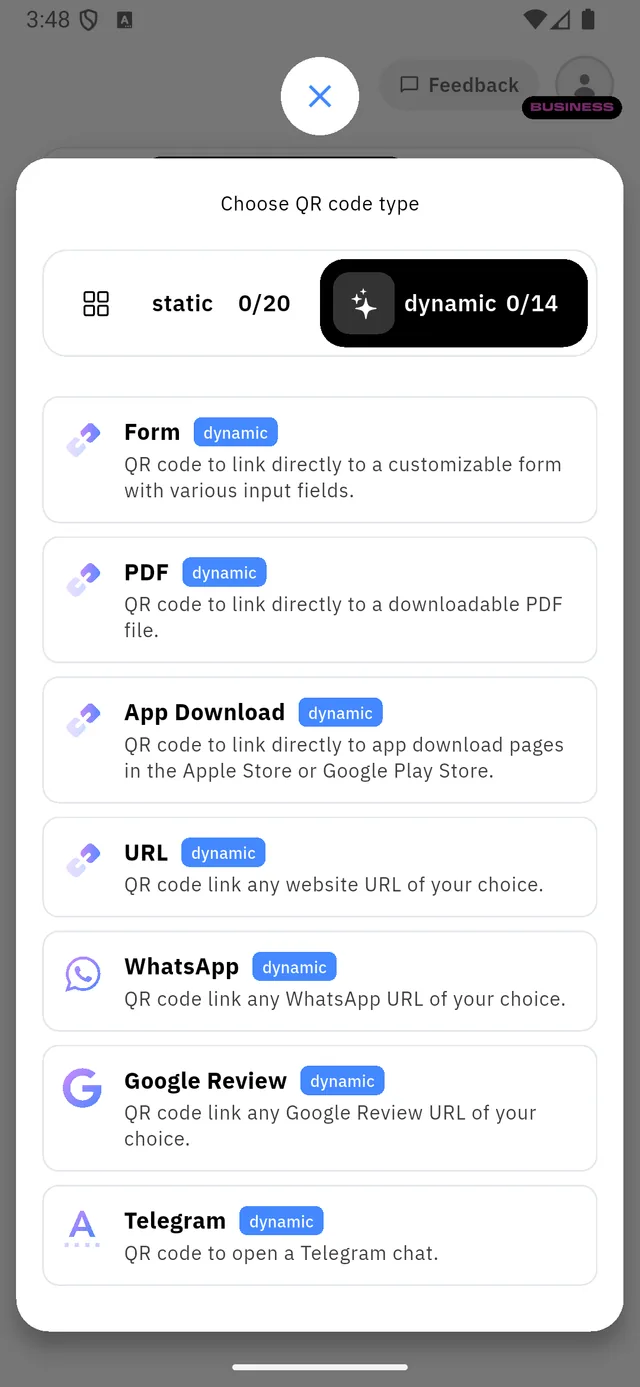
Form · PDF · App Download · URL · WhatsApp · Google Review · Telegram
Three of these exist only as dynamic, because they need Qshot to host something:
| Type | Why it must be dynamic |
|---|---|
| Form | Qshot hosts the form and collects the answers |
| Qshot hosts the file the code hands out | |
| App Download | One code that sends iPhones to the App Store and Android phones to Google Play |
That last one is worth knowing about. A single printed code, two app stores, the right one chosen per device.
Making one
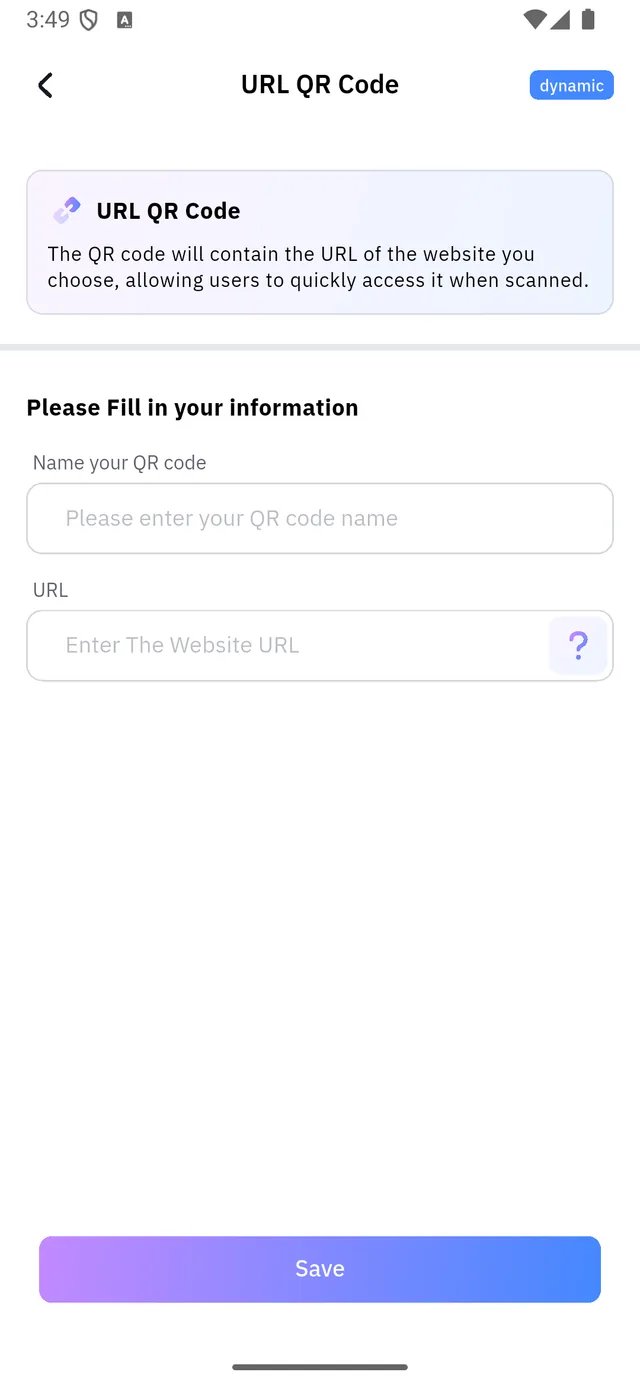
Every type asks the same two things first:
- Name your QR code — for you, in the list. Visitors never see it.
- The payload — here, the address.
Then Save, and the designer opens, where the colours, frame, shape and logo are set. That designer is the same one used for your site's code, and it is documented step by step in Sharing.
Scanning
The third tab is the scanner.
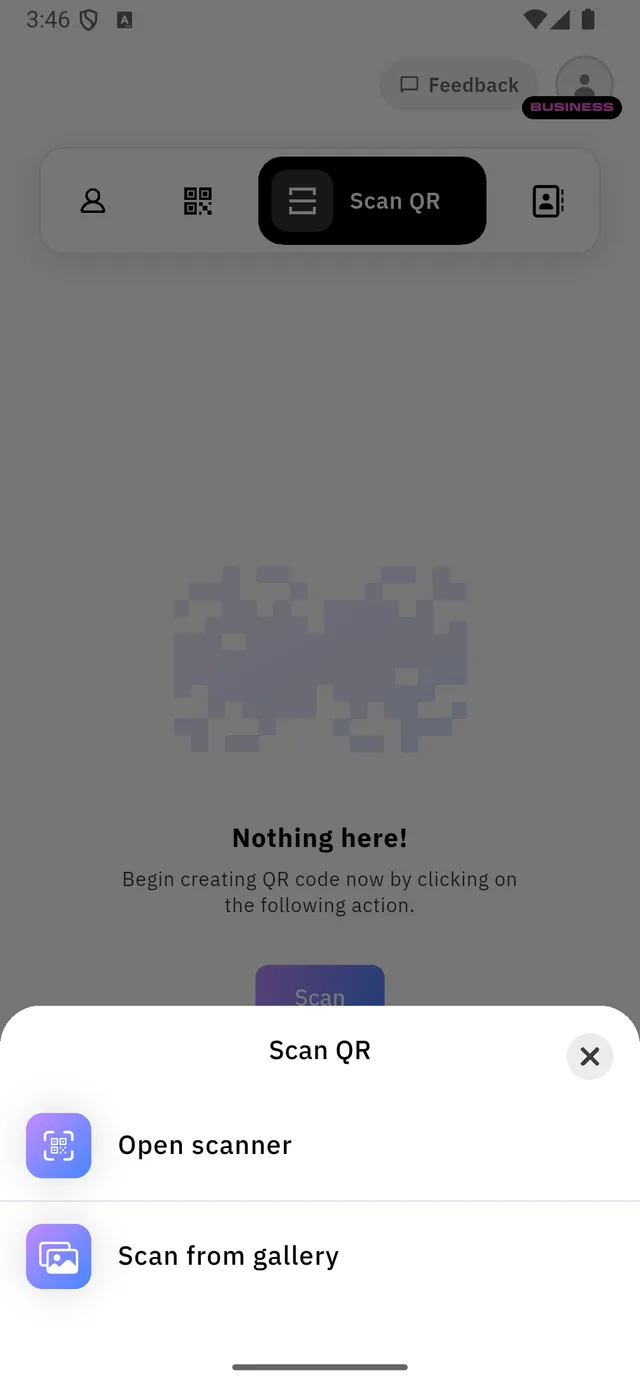
| 1 | Open scanner | Uses the camera |
| 2 | Scan from gallery | Reads a code out of a photo you already have |
Open scanner is a full-screen camera with a framing square — hold the code inside it.
Open scanner is a full-screen camera with a framing square — hold the code inside it.
Scan from gallery is the one people forget. Someone sends you a screenshot of a code — you do not need to print it and point a camera at it. Pick the picture and the result comes straight back:
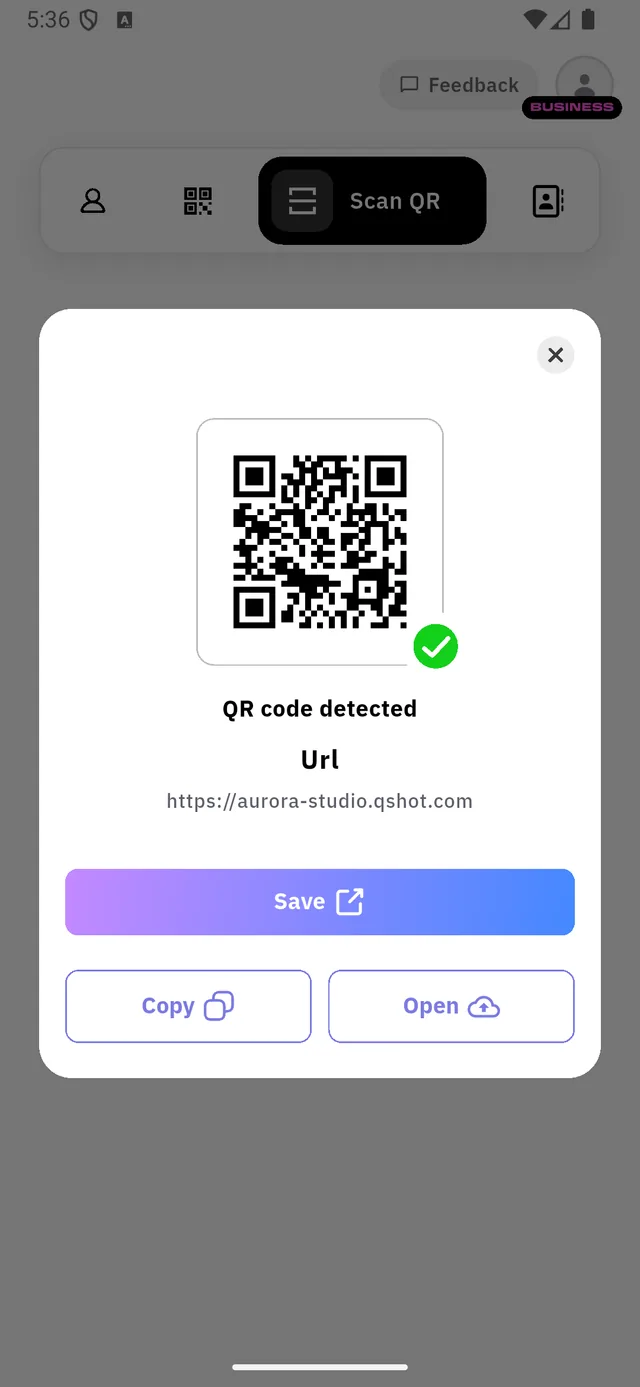
| 1 | What the code holds — the type and the address |
| 2 | Save keeps it in your scans list; Copy and Open do what they say |
When it cannot read the picture
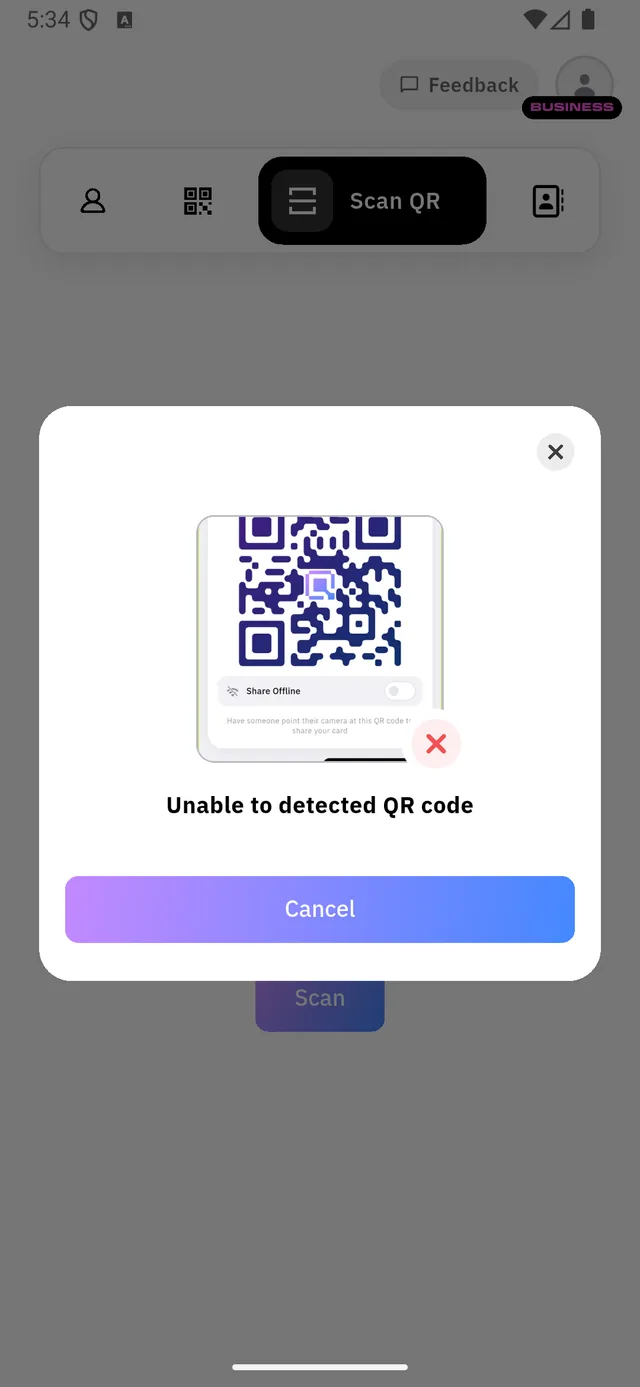
A code that is small in the frame, heavily styled, or blurry gets this dialog. Crop the picture tighter around the code and try again — the closer the code is to filling the image, the better it reads. Pick the picture and the result comes straight back:
| 1 | What the code holds — the type and the address |
| 2 | Save keeps it in your scans list; Copy and Open do what they say |
When it cannot read the picture
A code that is small in the frame, heavily styled, or blurry gets this dialog. Crop the picture tighter around the code and try again — the closer the code is to filling the image, the better it reads.
:::note A wording slip in the app The empty Scan QR tab says "Begin creating QR code now" — copied from the Generate tab. The button under it says Scan, and scanning is what it does. :::