On your watch
Qshot can put your QR code on a smartwatch face, so you share by holding out your wrist instead of finding your phone.
⋯ → Watch settings, or Watch in your account.
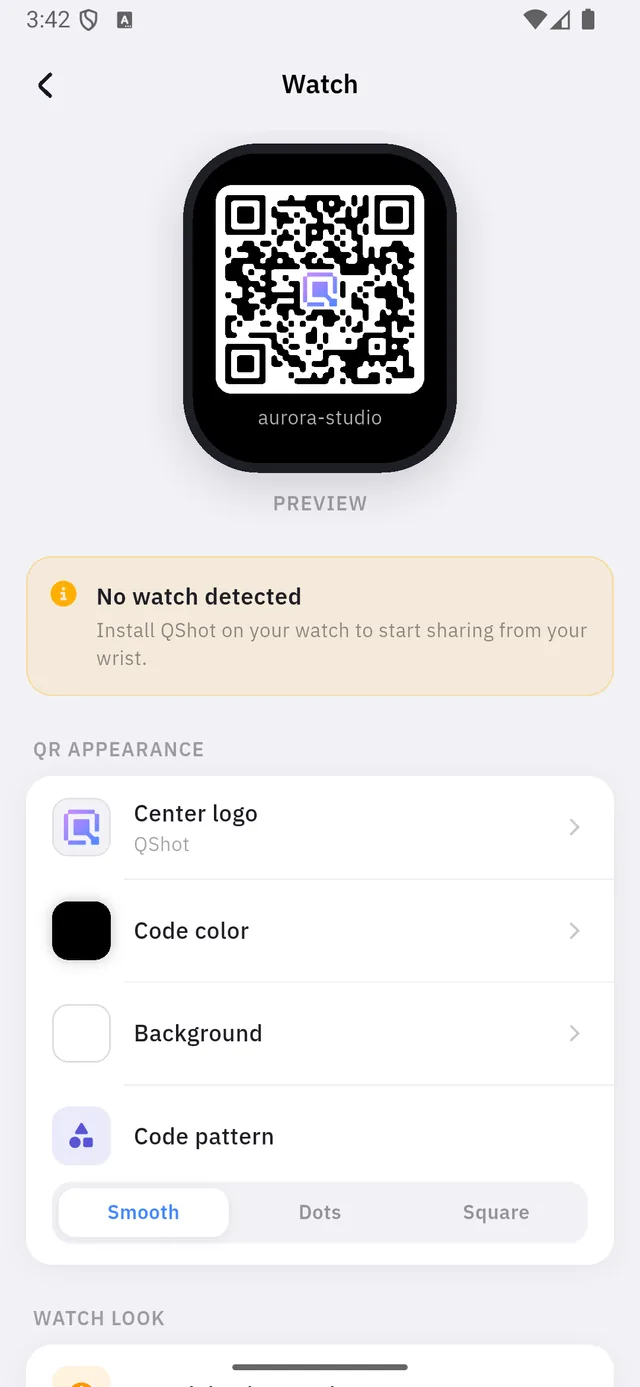
| 1 | A live preview of the watch face |
| 2 | Whether a watch is actually paired |
You can set this up with no watch
The amber notice — No watch detected. Install QShot on your watch to start sharing from your wrist — is a statement of fact, not an error. Every setting below it still works, and the preview updates as you change them.
So the design can be finished now and the watch paired later.
QR APPEARANCE
| Setting | Choices |
|---|---|
| Center logo | The mark in the middle of the code |
| Code color | The squares |
| Background | Behind them |
| Code pattern | Smooth, Dots or Square |
:::warning Contrast is not a style choice here A watch screen is small and often read in sunlight, at arm's length, by a camera that has one second to lock on.
Keep the code dark on a light background. A light code on a dark background is the usual reason a watch face will not scan. :::
WATCH LOOK
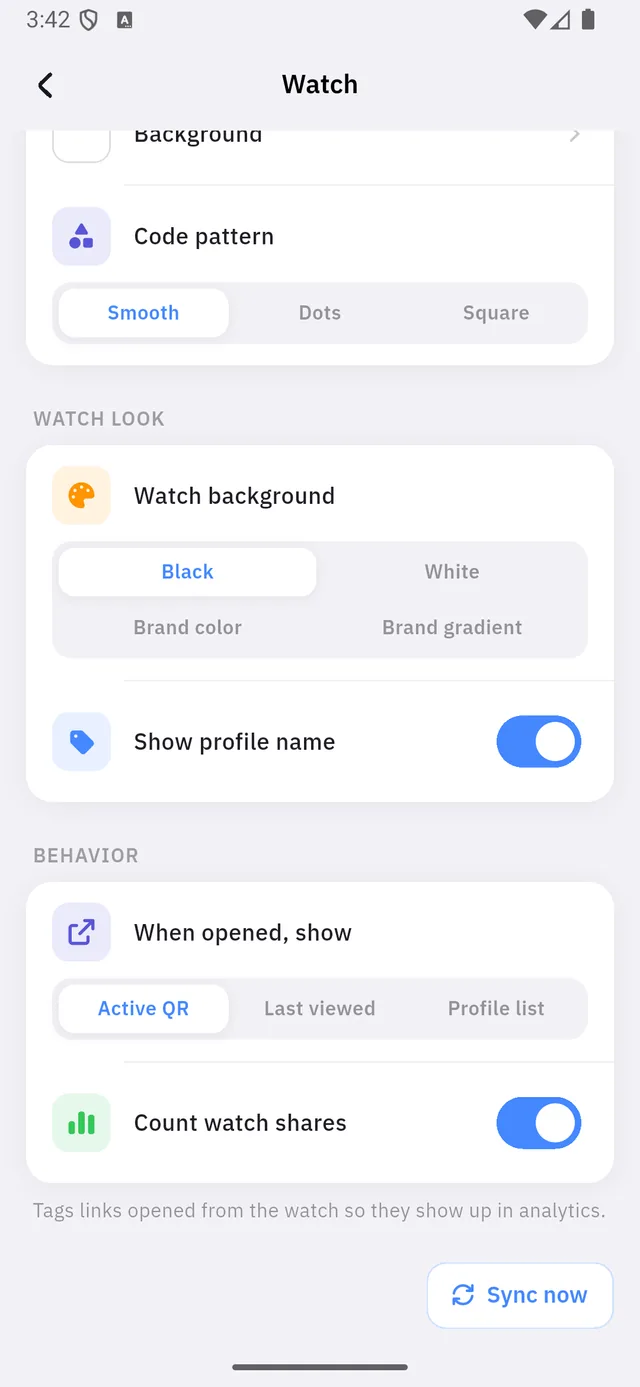
| Setting | Notes | |
|---|---|---|
| 1 | Watch background | Black · White · Brand color · Brand gradient |
| 2 | Show profile name | On — prints your site name under the code |
| 3 | When opened, show | Active QR · Last viewed · Profile list |
| 4 | Count watch shares | On — wrist scans appear in Analytics |
When opened, show decides what the watch app does the instant you raise your wrist:
| Choice | Best when |
|---|---|
| Active QR | You share the same code all day |
| Last viewed | You switch between a few |
| Profile list | You carry several sites and pick each time |
Sync now
Changes reach the watch on the next sync. Sync now, at the bottom, does not wait for it.
Choosing which site the watch shows
Not here — it is Show on watch in each site's Website settings. This screen styles whichever site that switch has chosen.