Contacts — your address book
The fourth tab on the home screen keeps the people you meet in one place — separate from your phone's own contacts, and tied to your Qshot account.
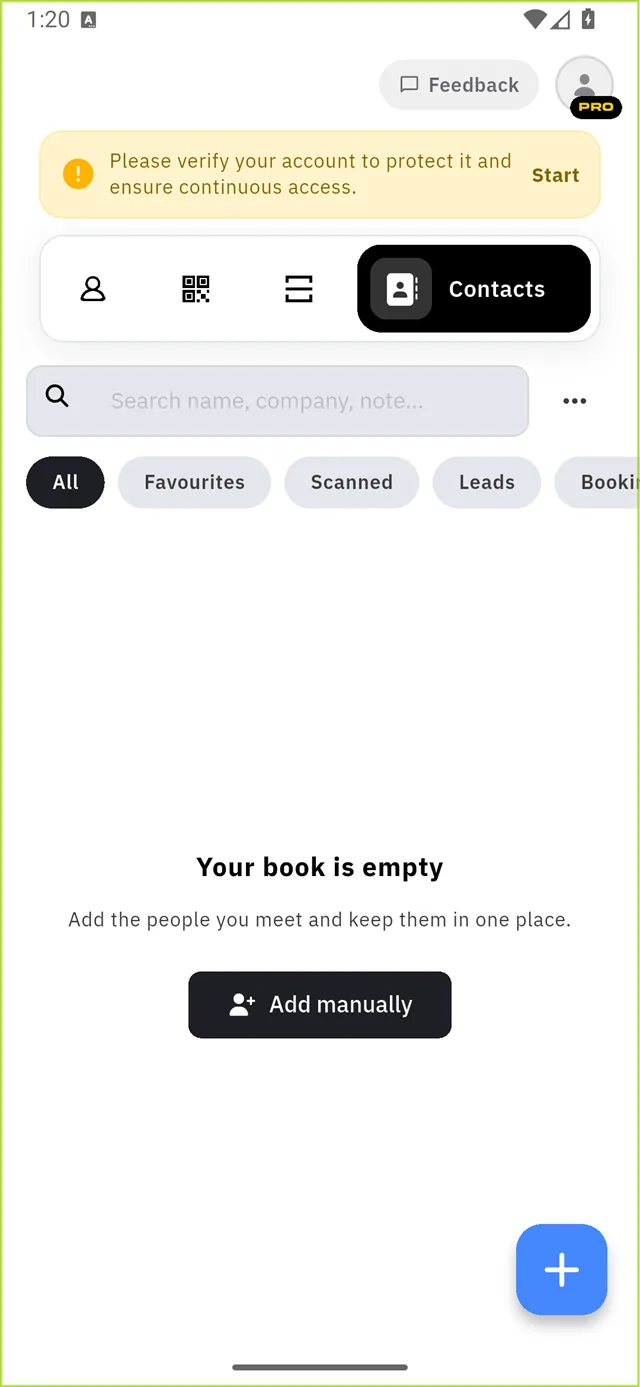
Across the top: a search box, a Tools menu, and five filters.
| Filter | Shows |
|---|---|
| All | Everyone |
| Favourites | The ones you starred |
| Scanned | People whose card you scanned |
| Leads | People who filled in your Lead Form |
| Bookings | People who booked with you |
:::note Leads and Bookings fill themselves Those two need no work from you. Anyone who submits your form or books an appointment lands here automatically. :::
Contacts arrive on their own too
Not everything here is typed in by hand. When someone books an appointment or fills your Lead Form, they land in the address book automatically:
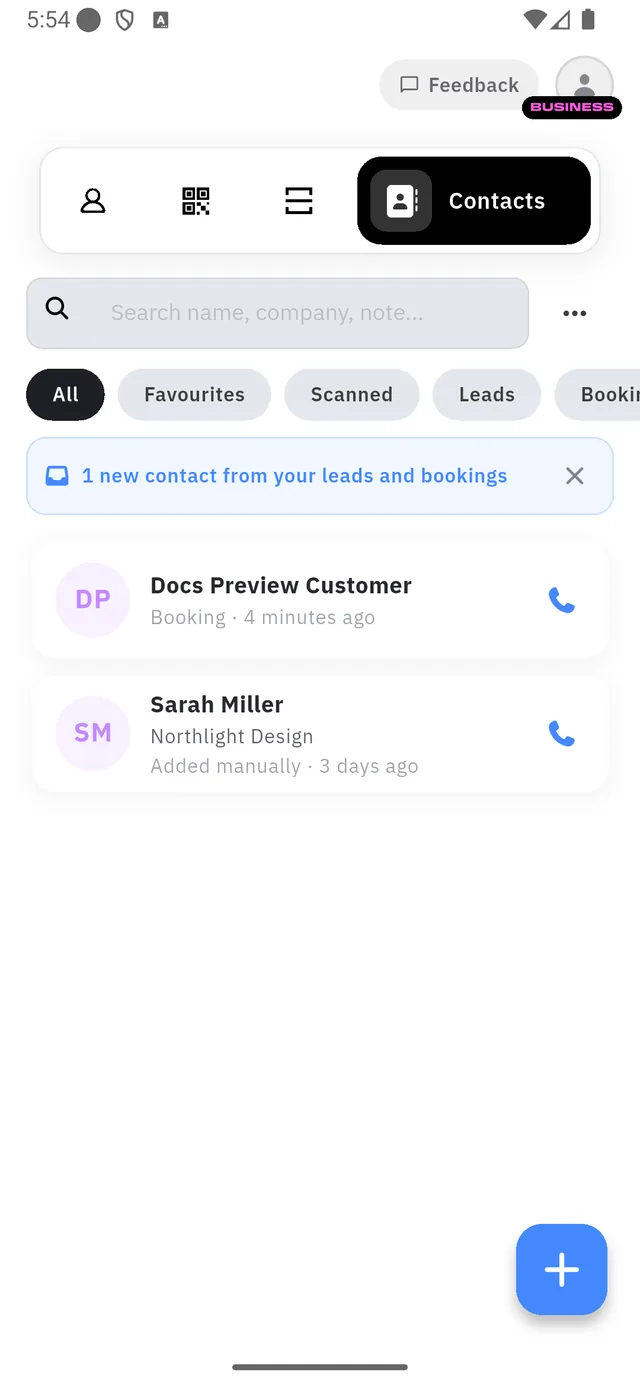
| 1 | The banner that announces them |
| 2 | The contact, labelled with where it came from — Booking · 4 minutes ago |
The filter chips along the top — Scanned, Leads, Booking — slice the book by that origin.
Adding someone by hand
Add manually opens the editor.
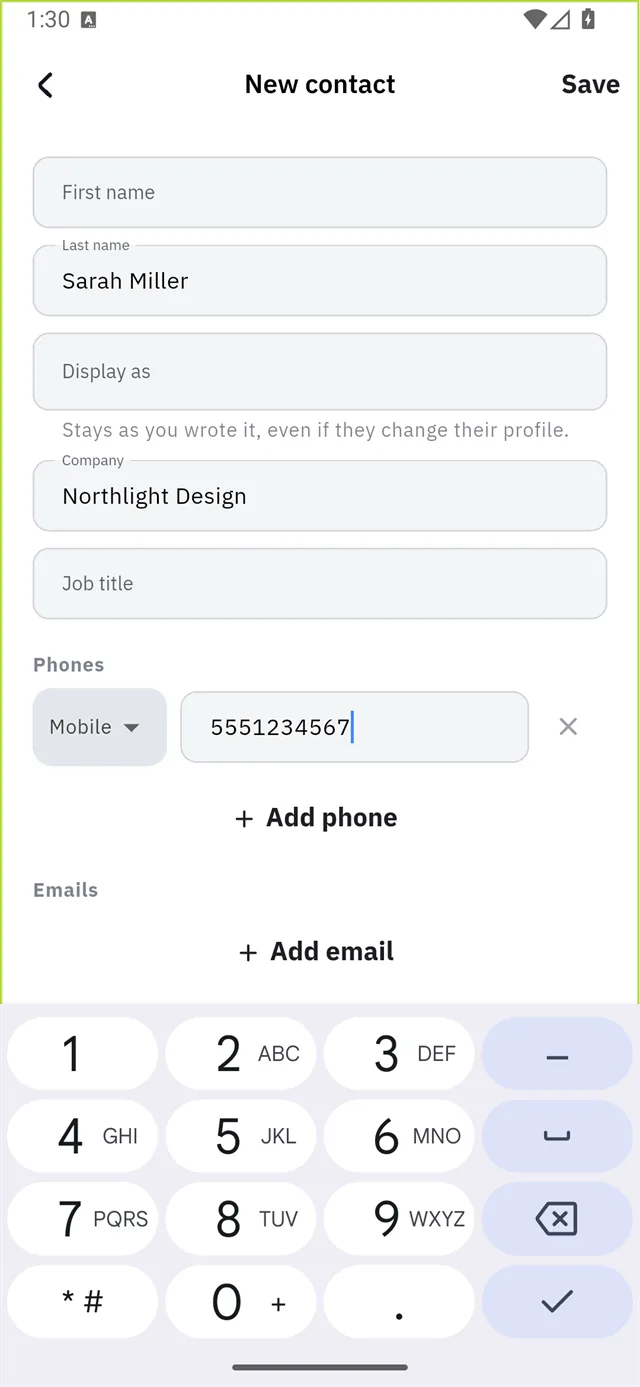
| Field | Notes |
|---|---|
| Name | The only one that really matters |
| Company | Where they work |
| Phones | Add phone — each row has a type: Mobile, Work… |
| Emails | Same pattern |
| Note | Anything you want to remember about them |
:::warning Save is at the top The Save button is in the top-right corner, not at the bottom of the form. Scrolling to the end looking for it finds nothing. :::

Each row carries a one-tap action button on the right.
A contact's page
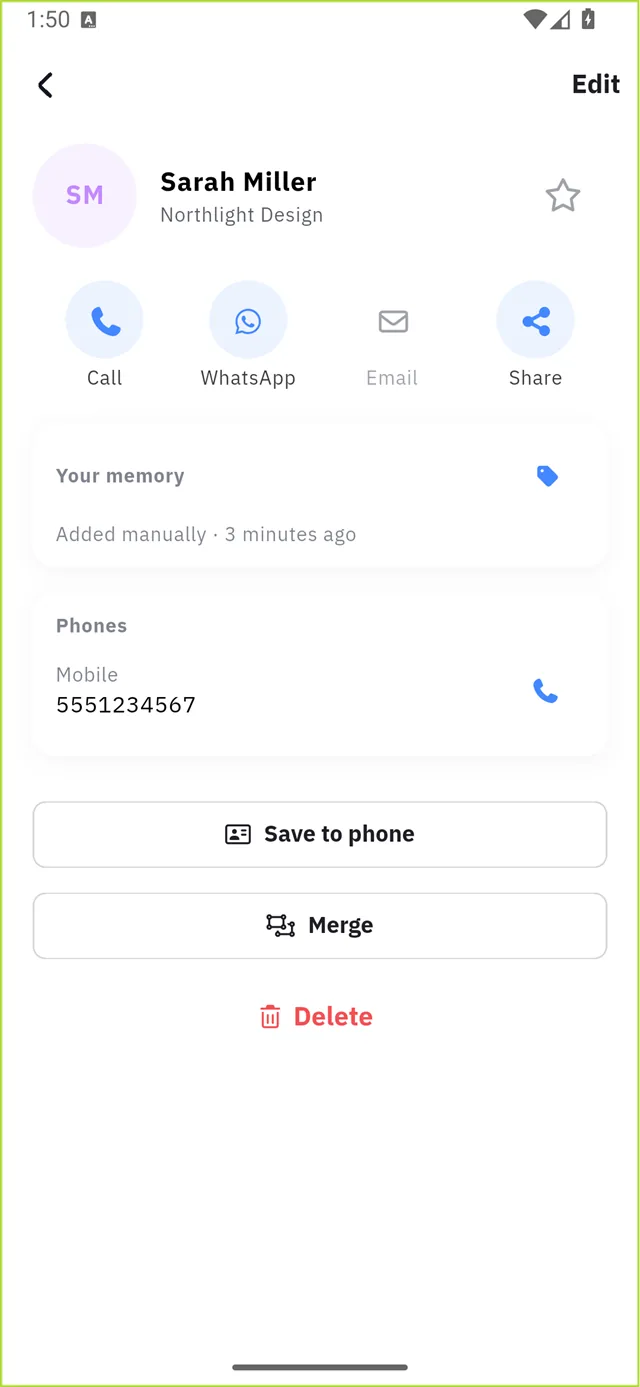
Four actions across the top — Call, WhatsApp, Email, Share — then their details, and:
| Section | What it holds |
|---|---|
| Your memory | Private notes only you can see |
| Tags for this contact | Your grouping labels |
| Save to phone | Copies them into your phone's contacts |
| Merge | Joins two entries for the same person |
| Delete | Removes them |
Tools
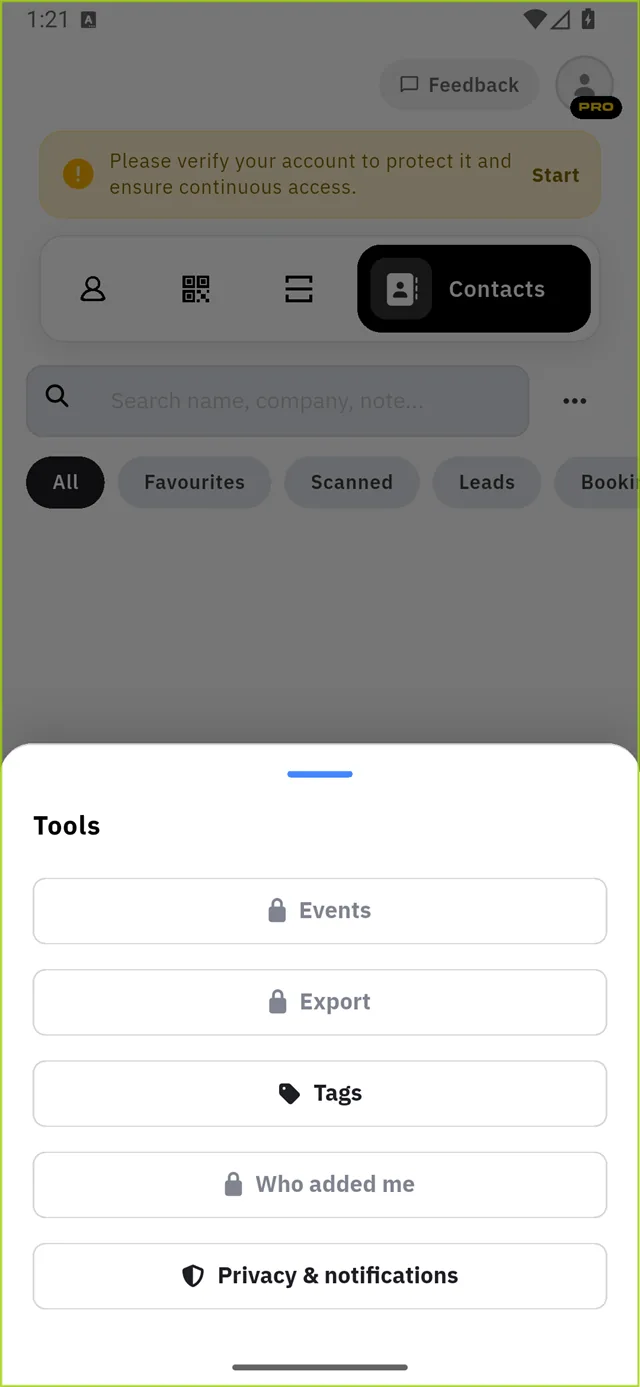
| Tool | What it does |
|---|---|
| Events | Session mode for a conference or fair |
| Export | Download your book as a file |
| Tags | Create and manage grouping labels |
| Who added me | People who saved your card |
| Privacy & notifications | Settings below |
Tags
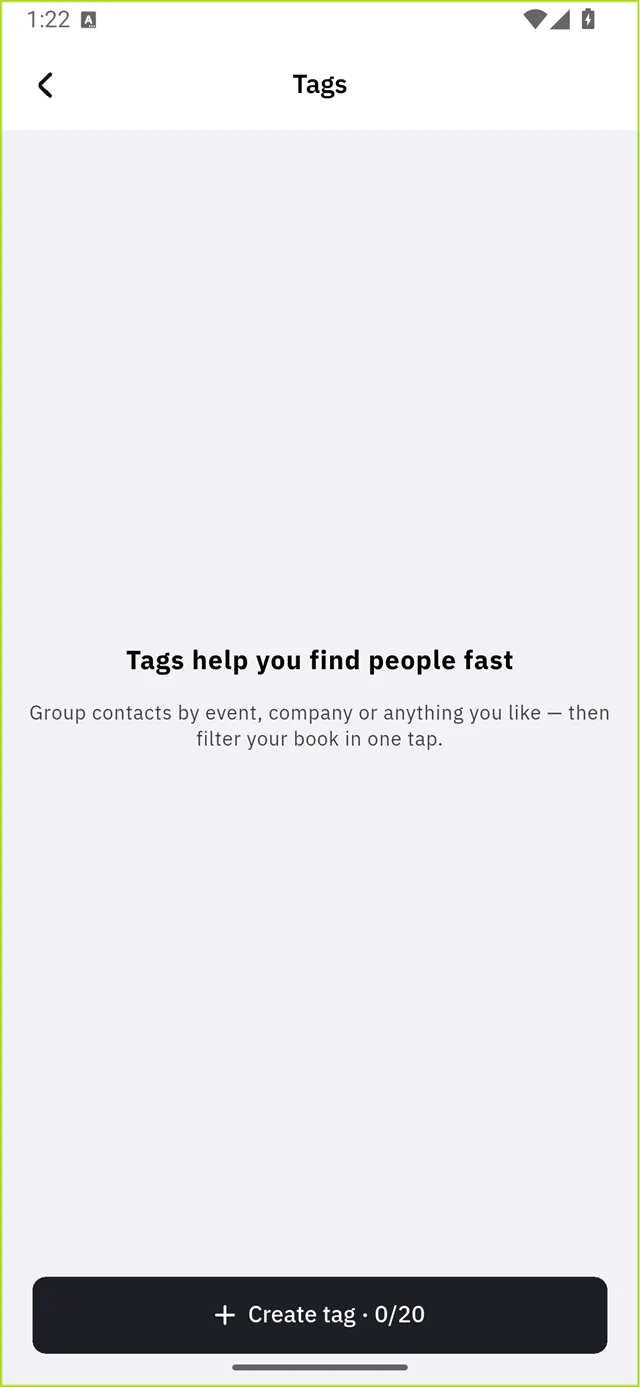
Group contacts by event, company or anything you like — then filter your book in one tap.
The button shows a counter — Create tag · 0/20 — because your plan caps how many tags you may have.
Privacy and notifications

One-tap action decides what the button on each row does: Call, WhatsApp or Email.
If a contact has no such detail, the row falls back to what it does have — call, then WhatsApp, then email.
Two more settings:
- Notify me when someone adds me — Instant or Daily digest
- Let people see that I saved their card — your side of "Who added me"
The two Business features
Two tools stay visible but locked below Business. They are not broken — they are asking you to upgrade.

Who added me
Upgrade to see the people who added your card to their contacts — and add them back in one tap.
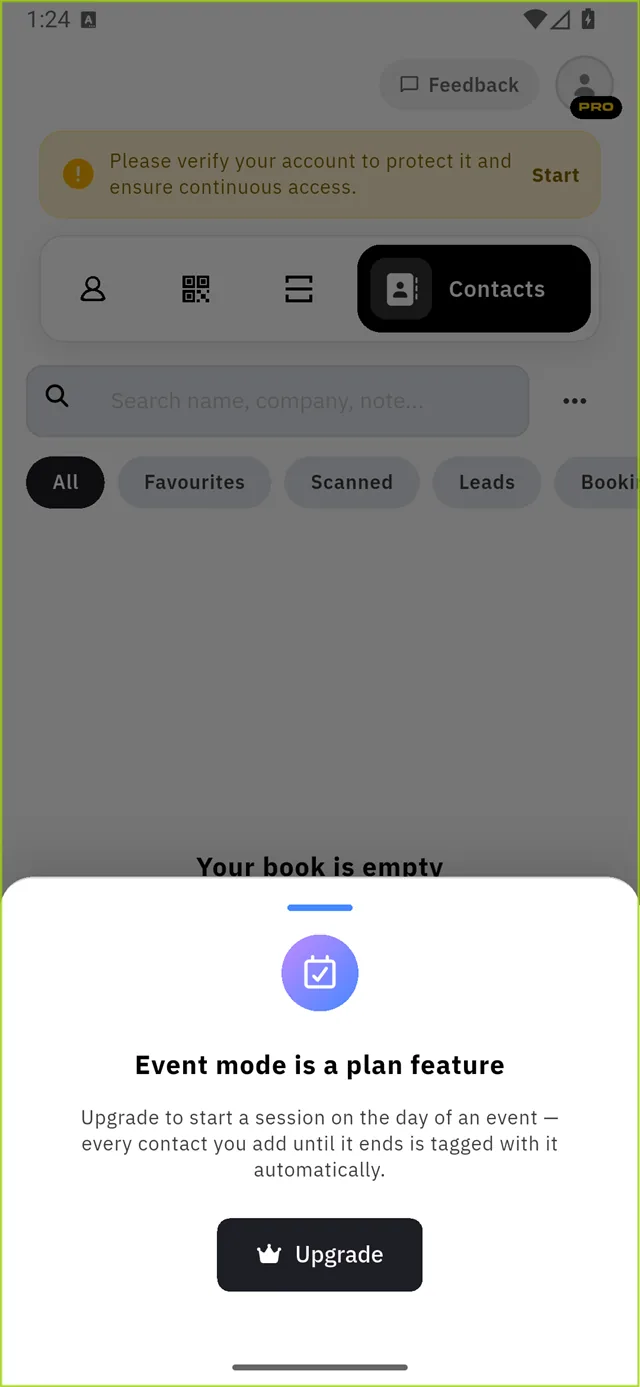
Event mode
Upgrade to start a session on the day of an event — every contact you add until it ends is tagged with it automatically.
:::info Locked, not hidden Qshot leaves paid features visible everywhere. A greyed-out tool that opens an Upgrade panel is working exactly as designed. :::