Turning bookings on
Bookings let visitors reserve a time with you from your site. Setting them up takes four steps, and skipping any one of them leaves your booking page empty.
| Step | Why it is required |
|---|---|
| 1. Configure | Currency, notice periods, cancellation rules |
| 2. Add a service | There is nothing to book without one |
| 3. Set working hours | Every day starts as a day off |
| 4. Switch bookings on | Configuring does not enable them |
1. Open the booking back-office
From the home screen, tap ⋯ under your site, scroll to ACTIONS, and tap Manage Booking.
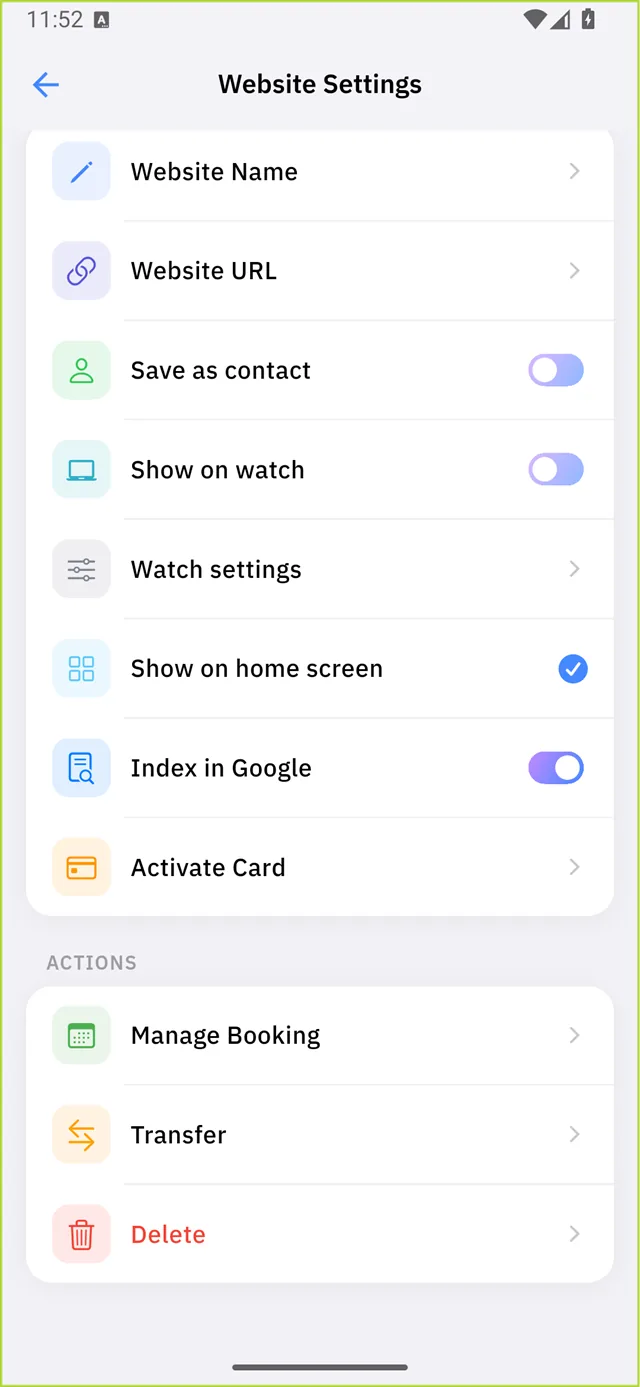
The first time, you get a setup gate:

Set up booking — Set up your booking settings to start accepting appointments.
2. Configure
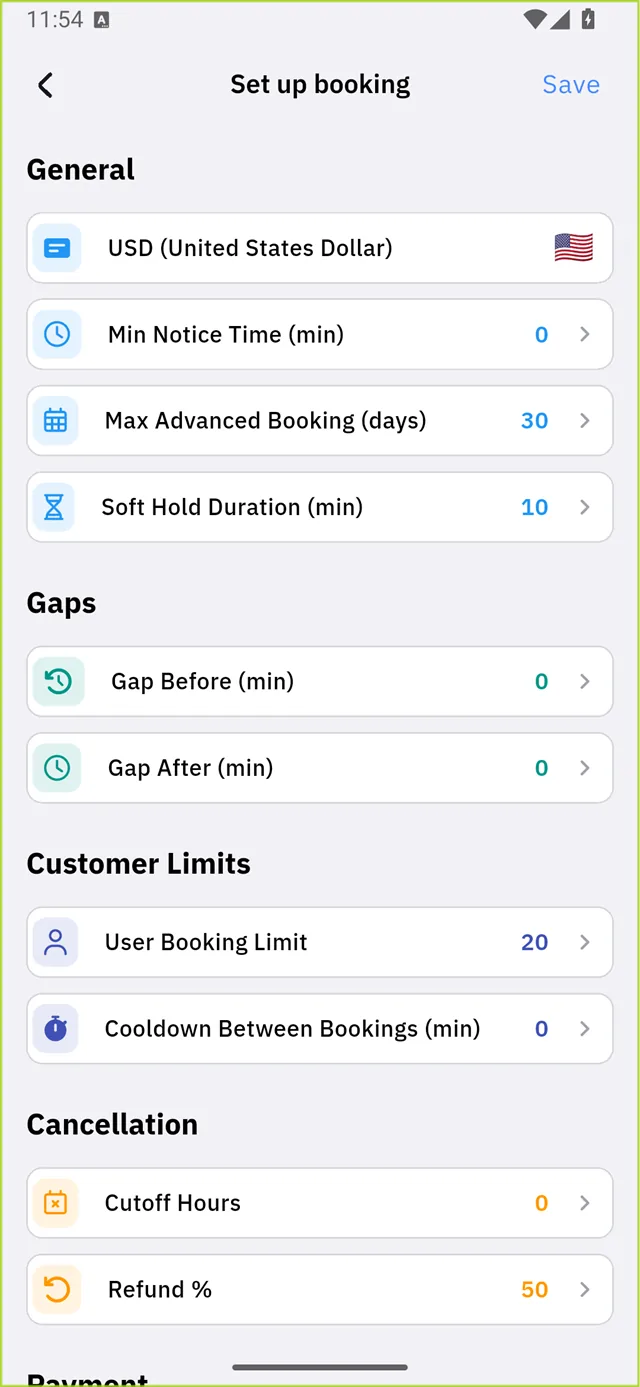
General
| Setting | Default | What it means |
|---|---|---|
| Currency | USD | The currency all your prices are in |
| Min Notice Time | 0 min | How soon before a slot someone may still book it |
| Max Advanced Booking | 30 days | How far ahead the calendar opens |
| Soft Hold Duration | 10 min | How long a slot is held while someone is paying |
Gaps
Gap Before and Gap After (both 0 by default) reserve buffer time around every appointment — for cleaning up, resetting a room, or travelling.
Customer limits
| Setting | Default | What it means |
|---|---|---|
| User Booking Limit | 20 | Most bookings one customer may hold |
| Cooldown Between Bookings | 0 min | Enforced gap between one customer's bookings |
Cancellation
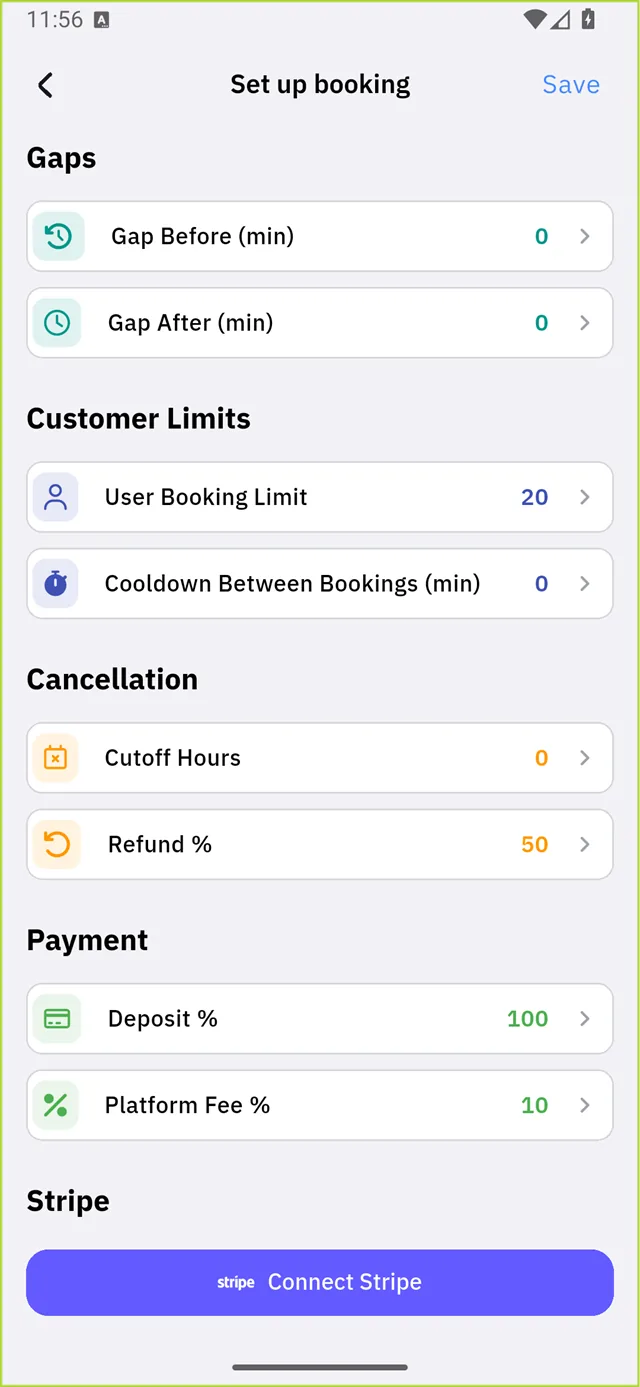
| Setting | Default | What it means |
|---|---|---|
| Cutoff Hours | 0 | How late a customer may still cancel |
| Refund % | 50 | How much they get back when they do |
Payment
| Setting | Default | What it means |
|---|---|---|
| Deposit % | 100 | Share of the price taken up front |
| Platform Fee % | 10 | Qshot's cut |
| Stripe | Not connected | Card payments need a Stripe account |
:::note You can take bookings without Stripe Leave Stripe unconnected and leave each service's payment switch off — it then reads Pay on site, and customers book with you and pay in person. :::
Tap Save at the top right.
3. The dashboard
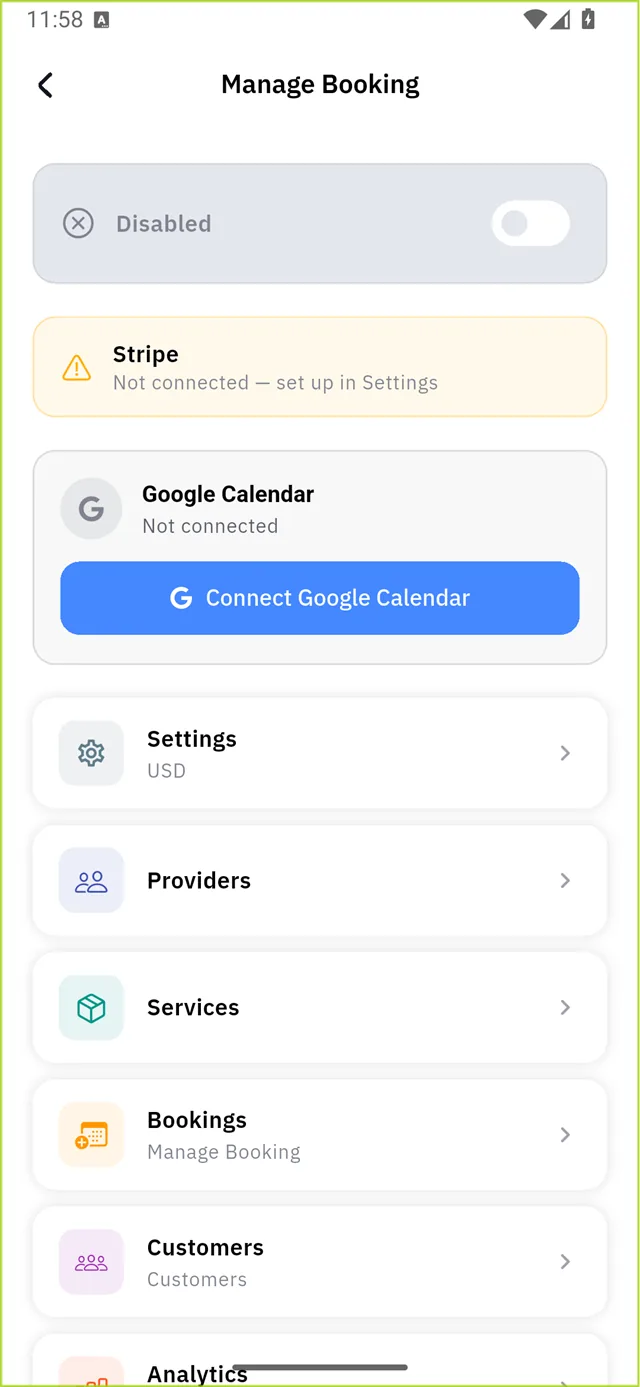
The switch marked 1 is your master control, and it starts Disabled. Below it: Stripe status, Google Calendar, and six sections.
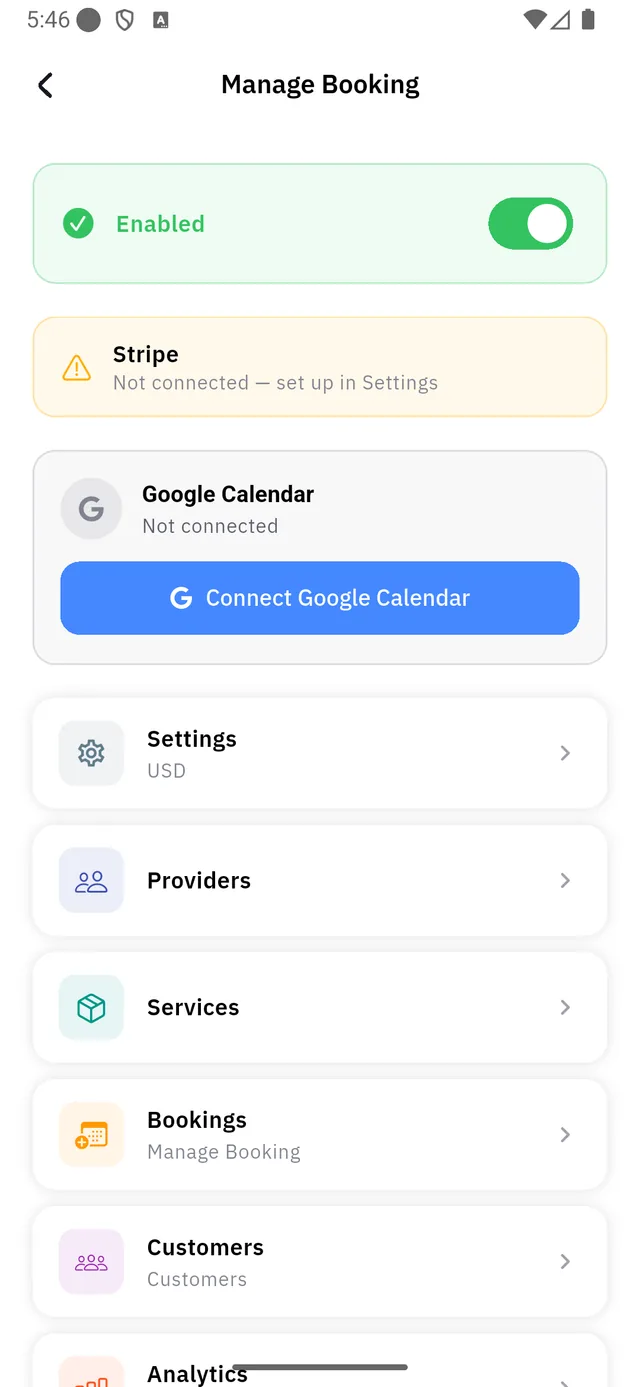
Connect Google Calendar opens a Google sign-in; once connected, bookings land in your calendar by themselves. It is optional — everything else works without it.
4. Add a service
Services → New Service.
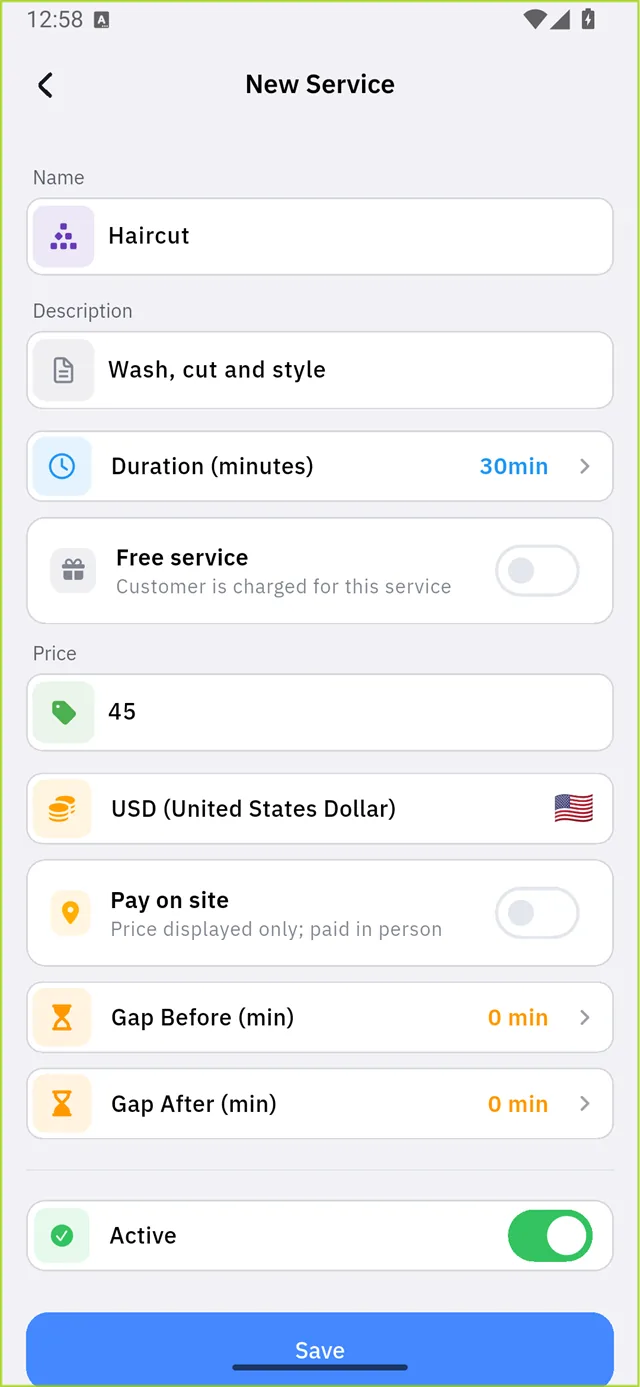
| Field | Notes |
|---|---|
| Name | What the customer picks — "Haircut" |
| Description | One line explaining it |
| Duration | 30 min by default |
| Free service | On by default — see below |
| Gap Before / After | Buffers just for this service |
| Active | Off hides it from your site |
:::warning "Free service" is ON by default While it is on, there is no price field at all — the service is free and confirms instantly. It is the switch marked 1 above, and the picture shows it already turned off, which is why Price, Currency and the payment row are visible.
Switching it off starts the price at 1.00, not blank. Type your real price over it. :::
The payment row has no "off"
That last switch is not a feature you turn on. Its label changes with its position, and both positions are a choice:
| Switch | Reads | Means |
|---|---|---|
| Off (default) | Pay on site | The price is shown; the customer pays you in person |
| On | Pay online | The customer pays by card when booking — needs Stripe |
So leaving it alone already means pay on site. There is nothing to enable.

Saved services can also carry sub-services, for variants of the same thing.
5. Set your working hours
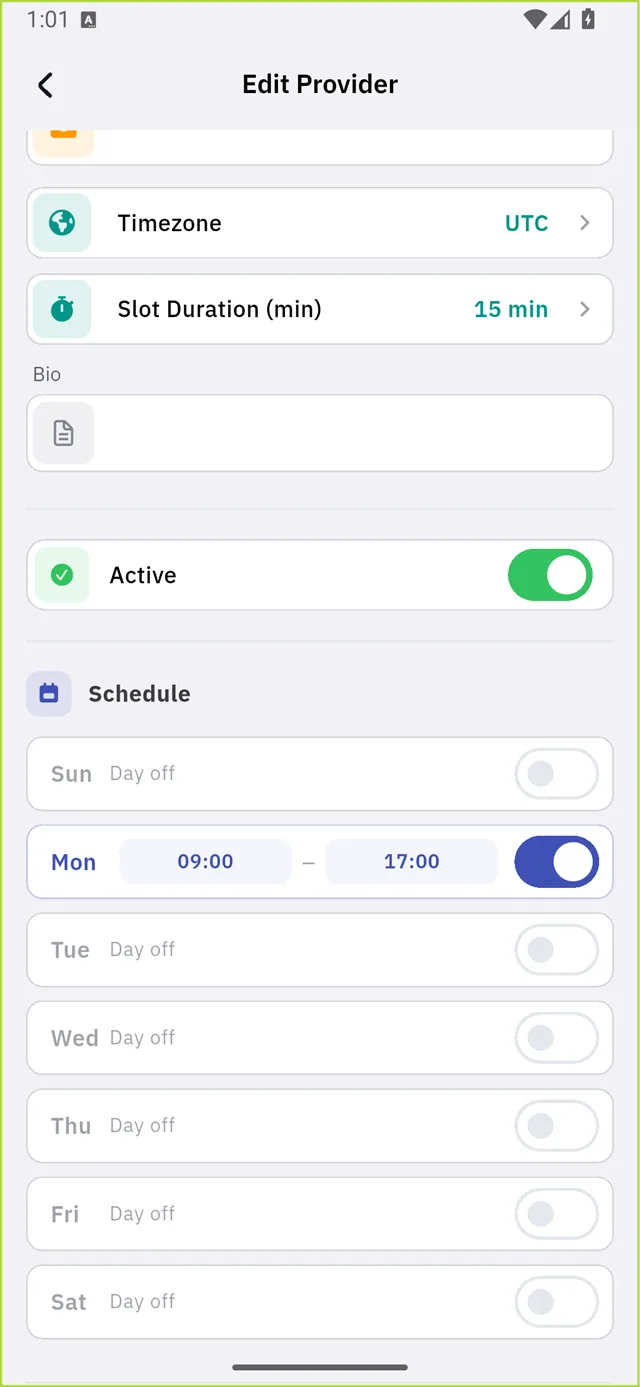
Providers — one Default Provider already exists.

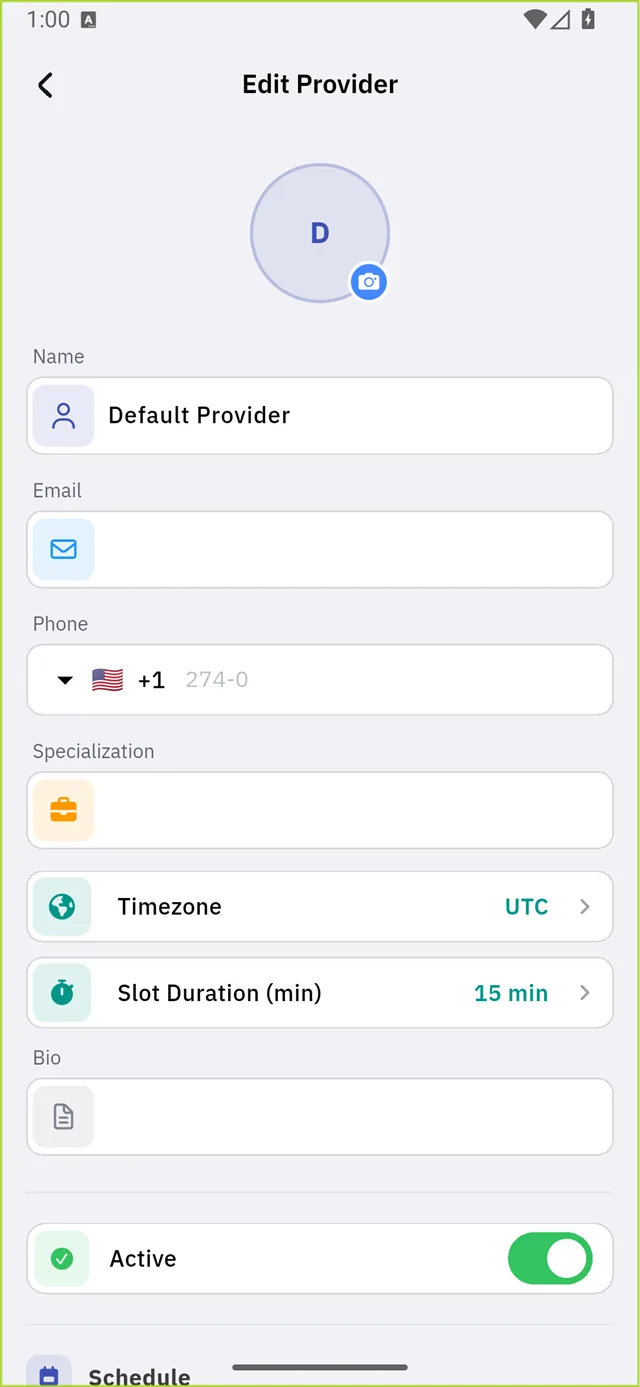
| Field | Default | Notes |
|---|---|---|
| Name | Default Provider | Shown to customers |
| Timezone | UTC | Change this to your own |
| Slot Duration | 15 min | Granularity of start times |
| Active | On | Off removes them from booking |
The step everyone misses
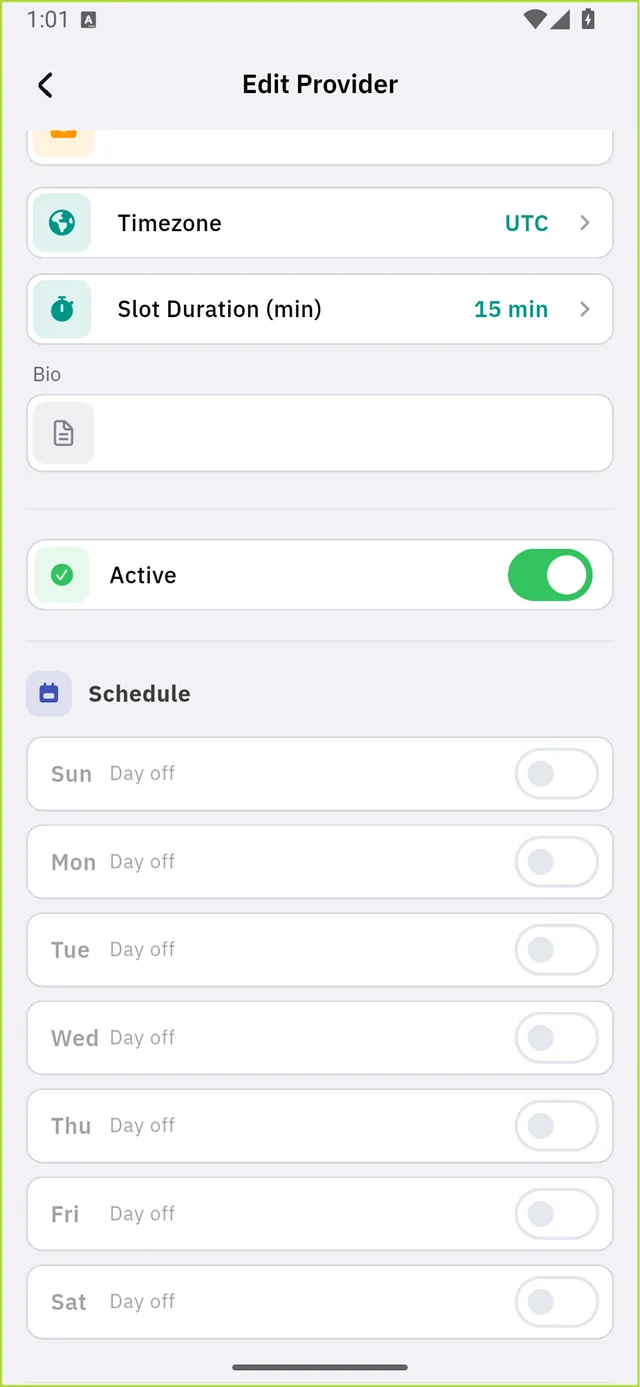
Every day of the week starts as "Day off" — the switch marked 1 and the six below it are all off.
Until you switch at least one day on, your booking page has nothing to offer and no one can book anything.
Switch a day on and its hours appear — 09:00 to 17:00 by default:
Further down:

- Blackout Dates — holidays and one-off closures
- Services Offered — which services this provider performs
Tap Save.
6. Switch bookings on
Back on the dashboard, tap the switch itself — on the right of the row, not the middle.
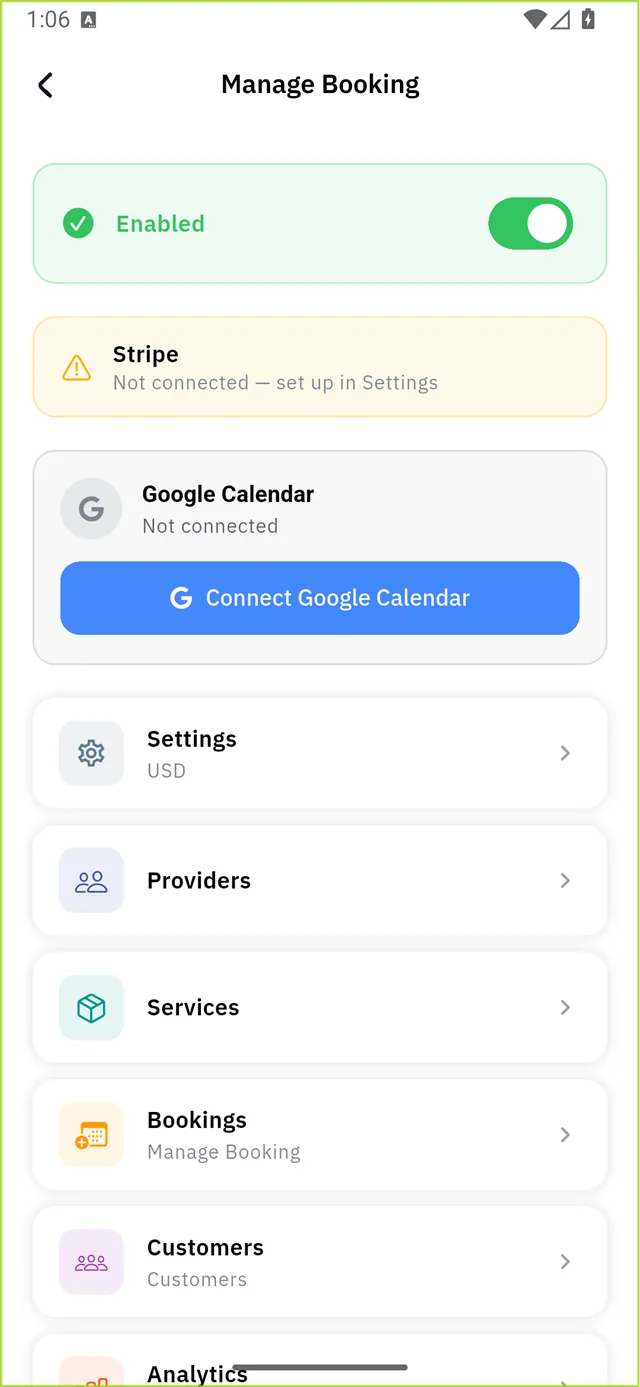
It reads Enabled. Your site now takes bookings.
What a real booking looks like
Everything below is one actual booking, made from the public site the way any visitor would make it.
In the list
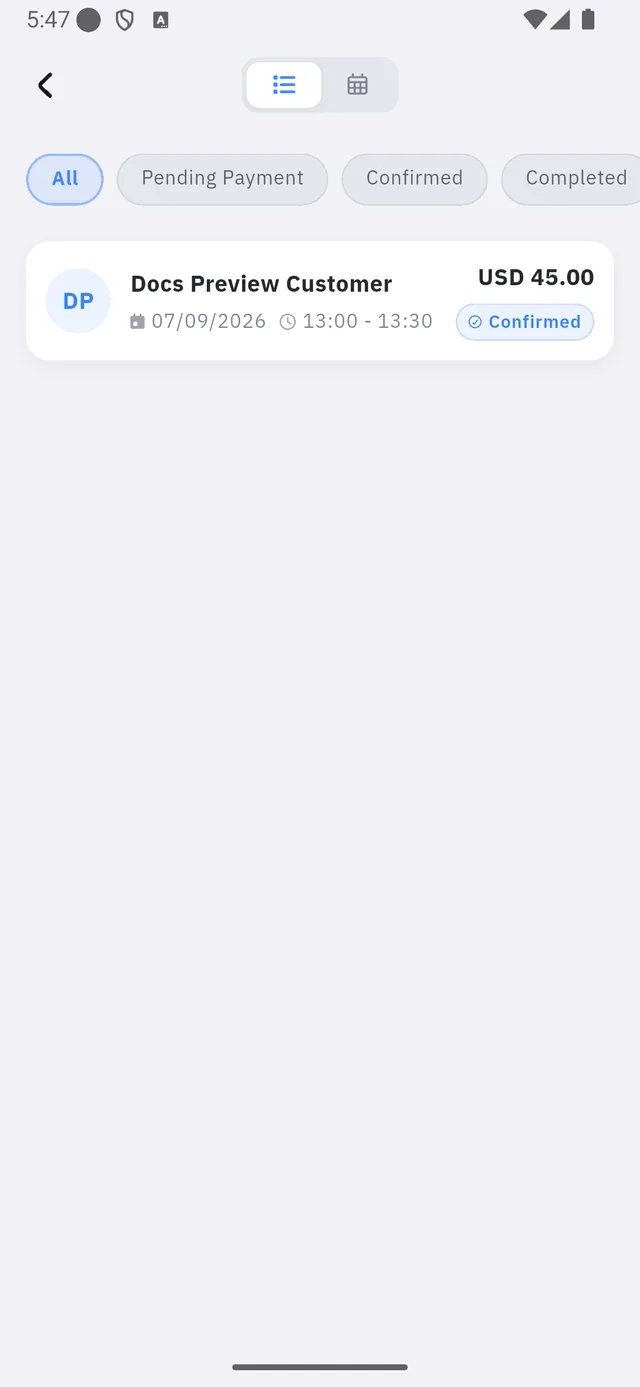
Bookings has two views — List and Calendar — and filters for All, Pending Payment, Confirmed and Completed. A pay-on-site booking arrives already Confirmed; only card payments pass through Pending Payment.
:::note The times are your times The card reads 13:00 because that is 10:00 UTC — the slot the customer picked — shown in your phone's timezone. You and a customer abroad will see different numbers for the same appointment, and both are right. :::
On the calendar
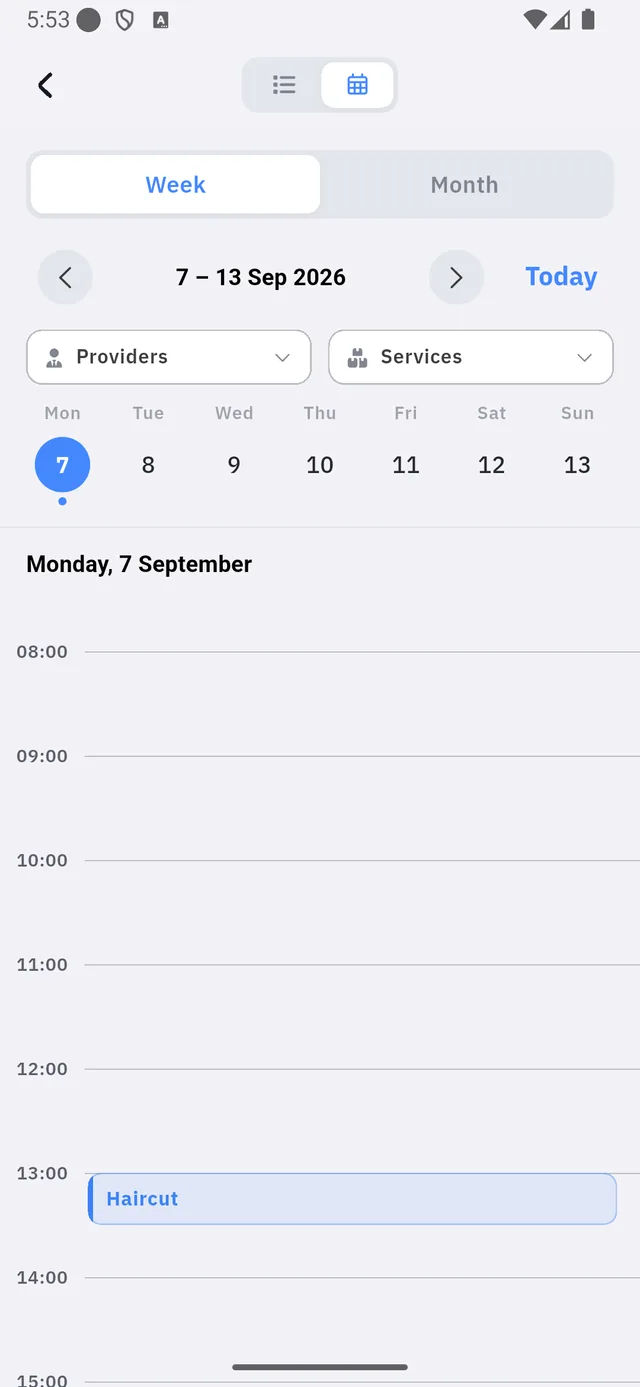
The Calendar view has Week and Month modes, provider and service filters, and a dot under any day that holds a booking.
The booking itself
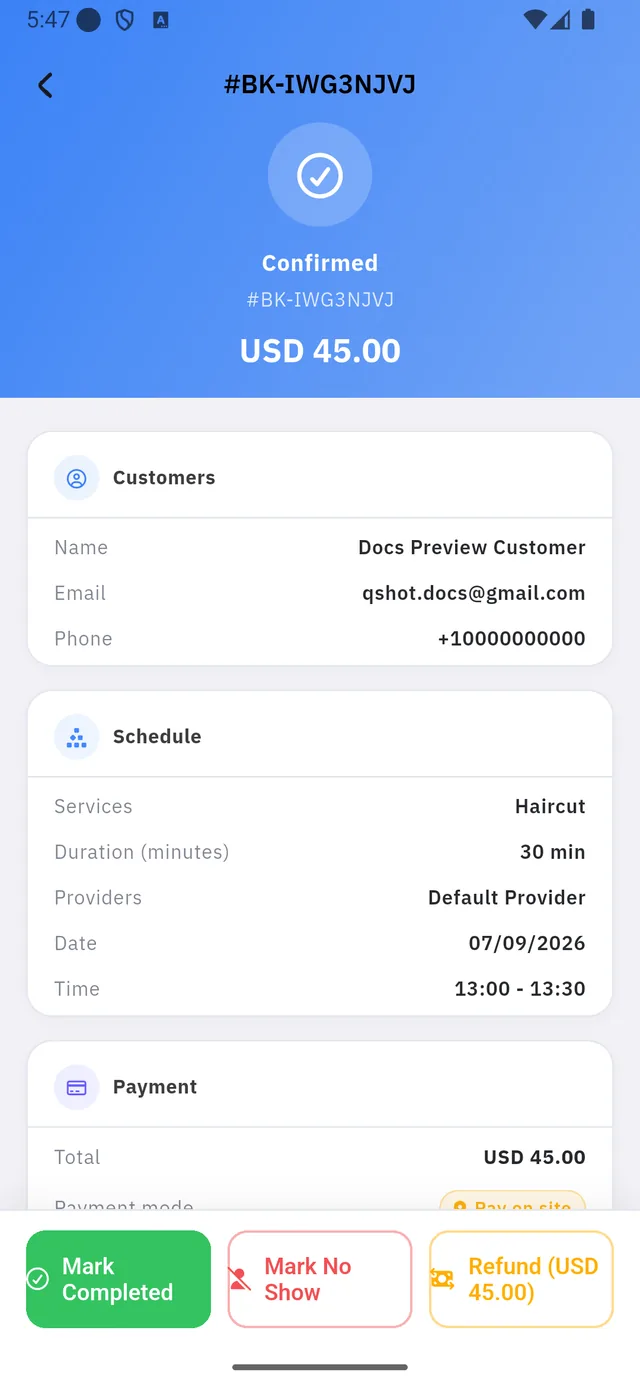
Who booked, what, when, and how they pay — then the three decisions this screen exists for:
| Button | When | |
|---|---|---|
| 1 | Mark Completed | They came; the appointment happened |
| 2 | Mark No Show | They did not come |
| 3 | Refund | You are giving the money back |
The customer it created
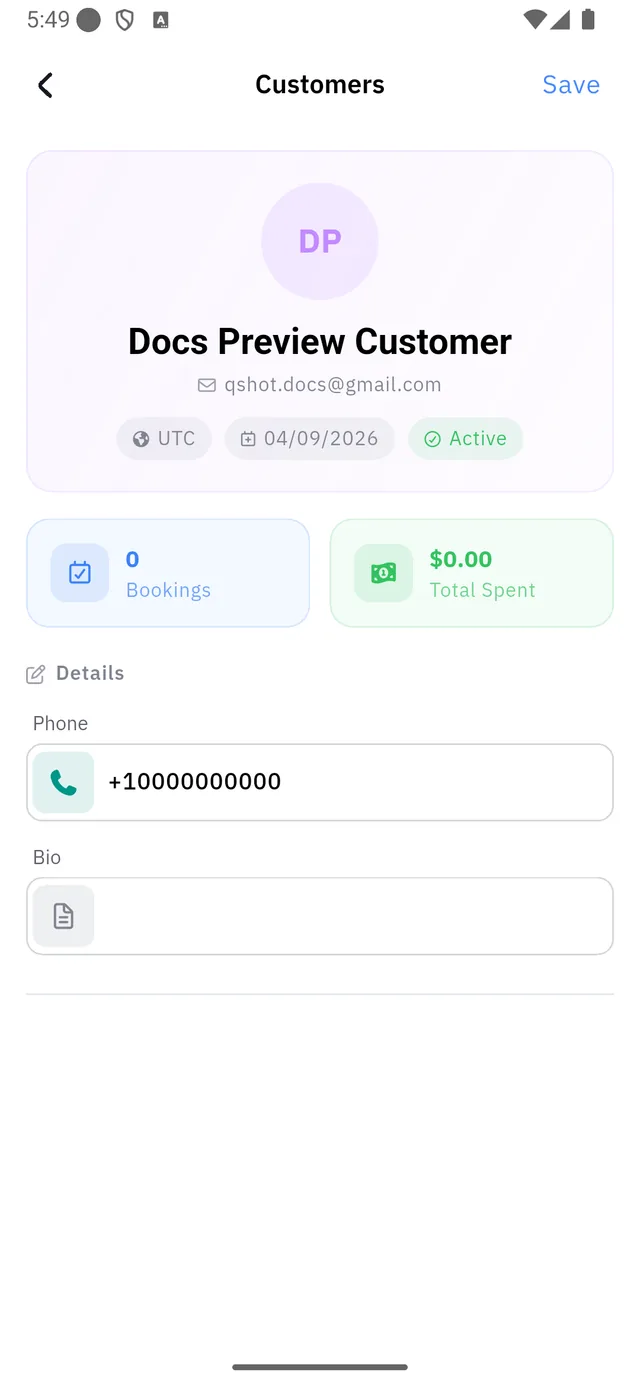
Booking once created a customer record automatically: timezone, join date, an editable phone and bio, and counters for bookings and money. The counters track completed activity, so a customer whose first appointment is still ahead reads 0 and $0.00 — that is not a bug.
The analytics it moved
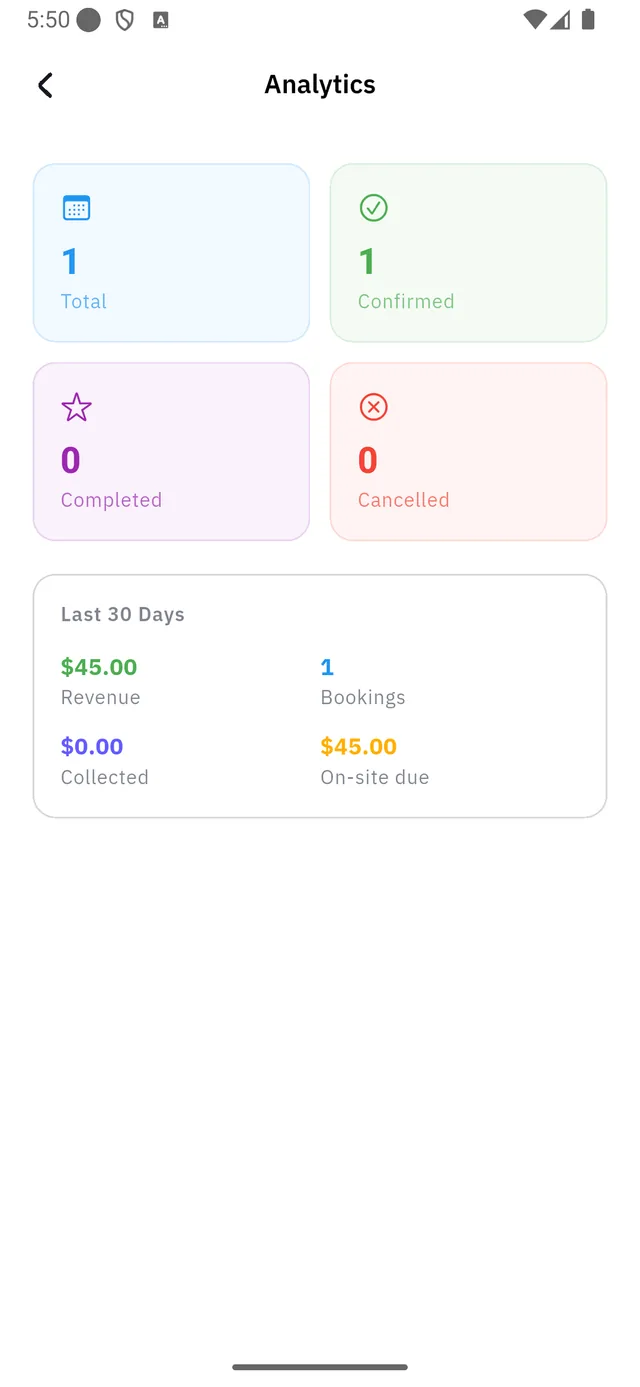
One confirmed pay-on-site booking reads: revenue $45.00, collected $0.00, on-site due $45.00. Collected only moves when money actually does — for pay-on-site, that is after you mark the booking completed.
It reaches your address book too
The person who booked lands in Contacts on their own, tagged as coming from a booking. One booking, four screens updated.
Add the block to your site
The back-office is only half of it. Your visitors need somewhere to press: open the editor and add the Booking block.