Your account
Tap your avatar in the top right of the home screen. Everything about you — as opposed to your sites — is here.
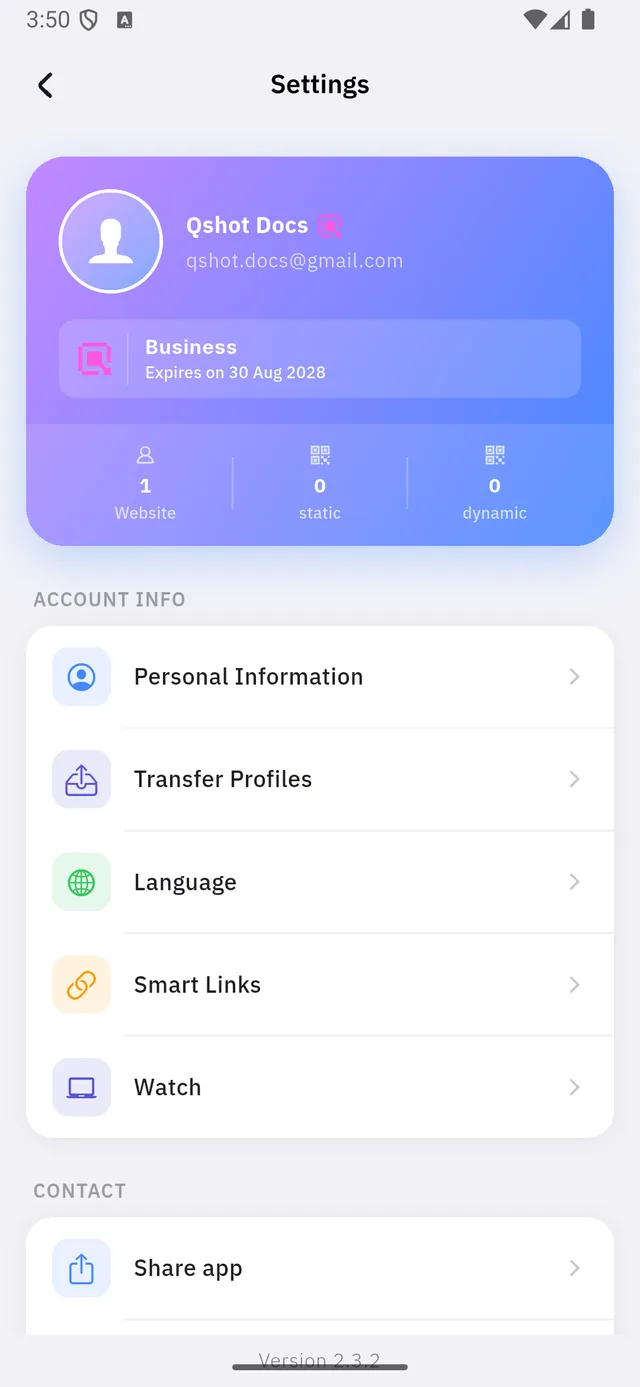
| 1 | Your plan and the date it expires |
| 2 | What you have used: websites, static QR codes, dynamic QR codes |
Those three counters are the quickest way to see whether you are near a limit. They count what exists, not what you are allowed — the allowance is in Plans.
Personal Information
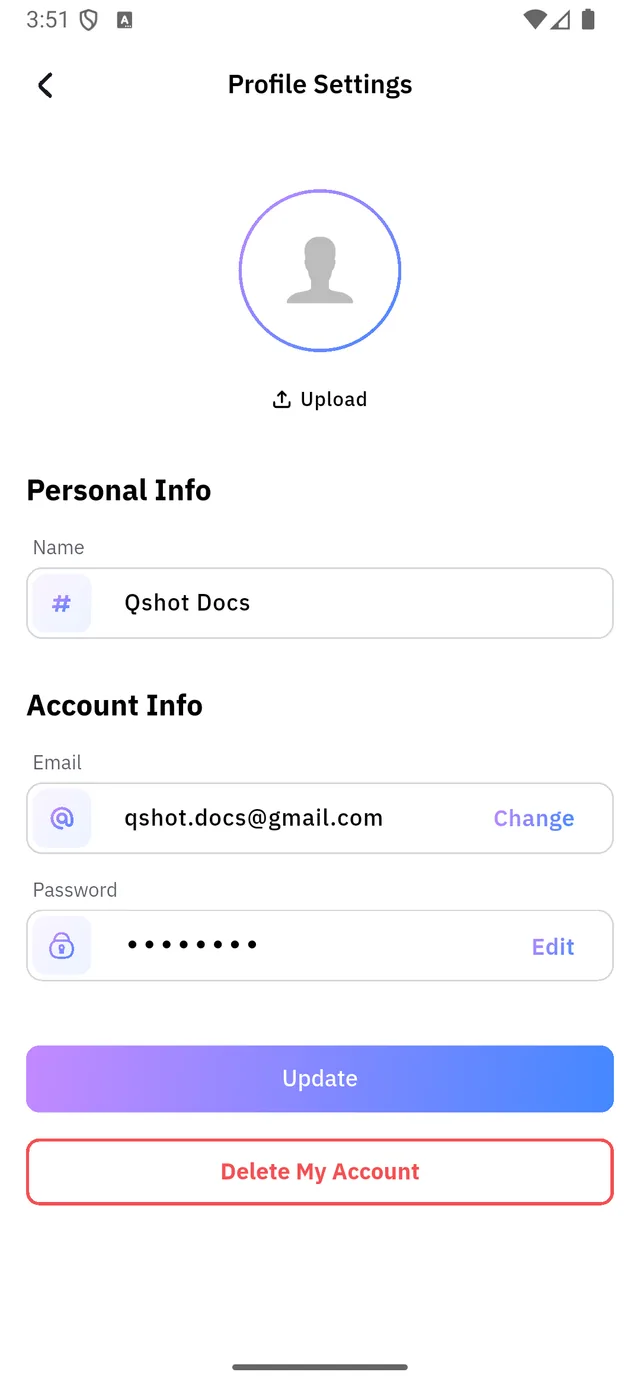
Your photo, your name, and two things that need care:
| Control | Opens | |
|---|---|---|
| 1 | Change | Change Email |
| 2 | Edit | Change Password |
Update saves the photo and the name. It does not save the email or the password — those each have their own screen, reached by the small link on the right of the row.
Changing your password
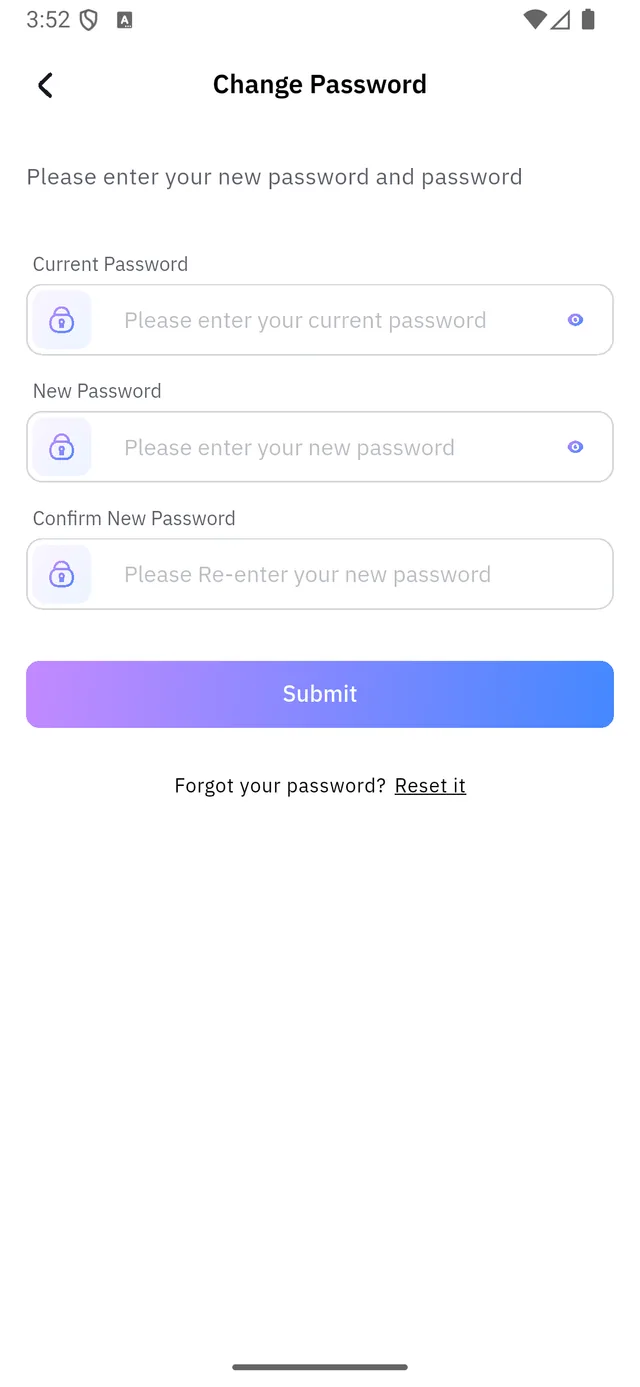
Three fields: your current password, the new one, and the new one again. Getting the current one wrong is the usual reason Submit does nothing.
If you cannot remember the current one, Reset it at the bottom sends you down the password reset path instead.
Changing your email
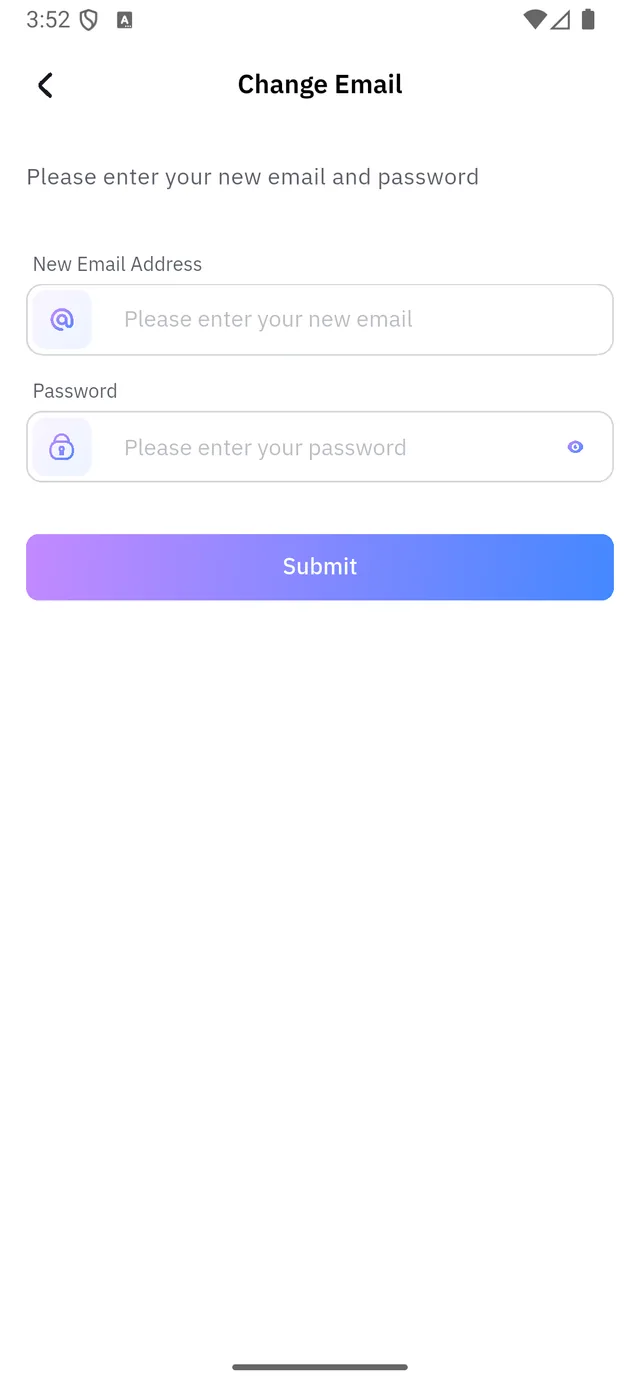
The new address plus your password — the password proves it is you, so a borrowed phone cannot move your account somewhere else.
:::warning The change is not finished when you tap Submit Qshot sends a confirmation link to the new address. Until you open that link, your old address is still the one that signs you in.
So do not use an address you cannot open right now. :::
A confirmation link works once, and only the newest one works at all. A stale or reused link opens this:
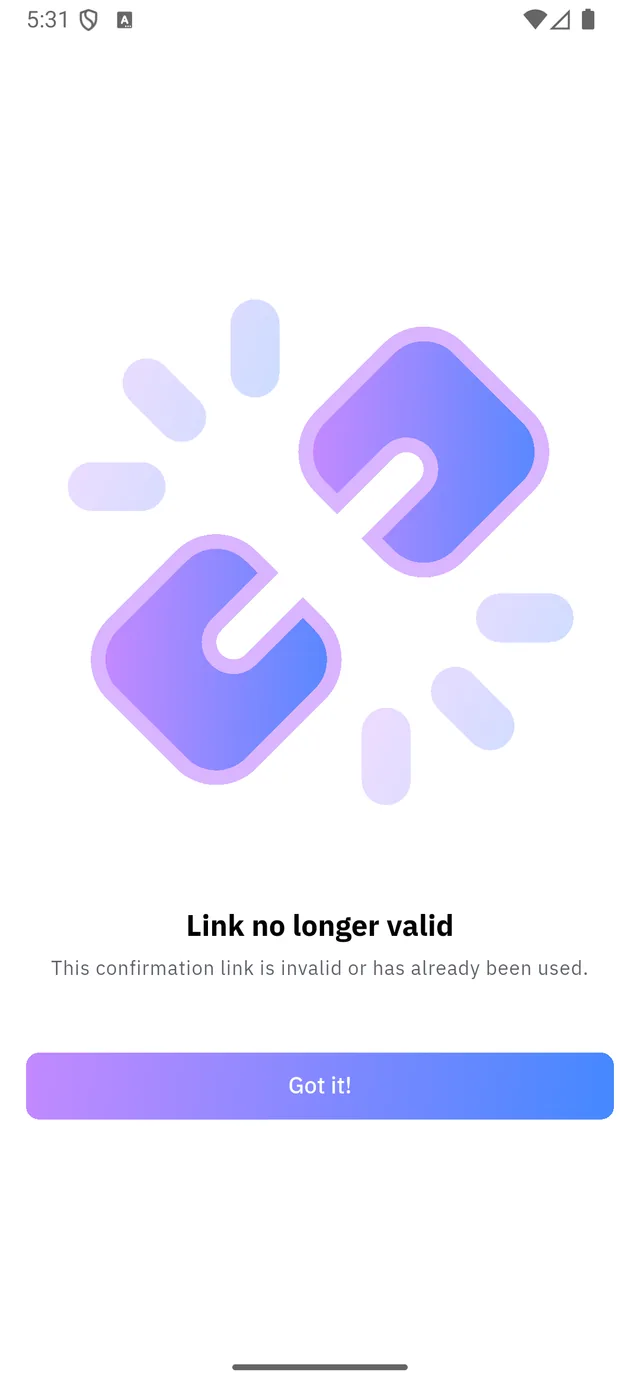
Nothing is lost when you see it — the address simply has not changed yet. Submit the form again for a fresh link.
Transfer Profiles
Hands a whole site to someone else's account — a client, a colleague, a buyer.
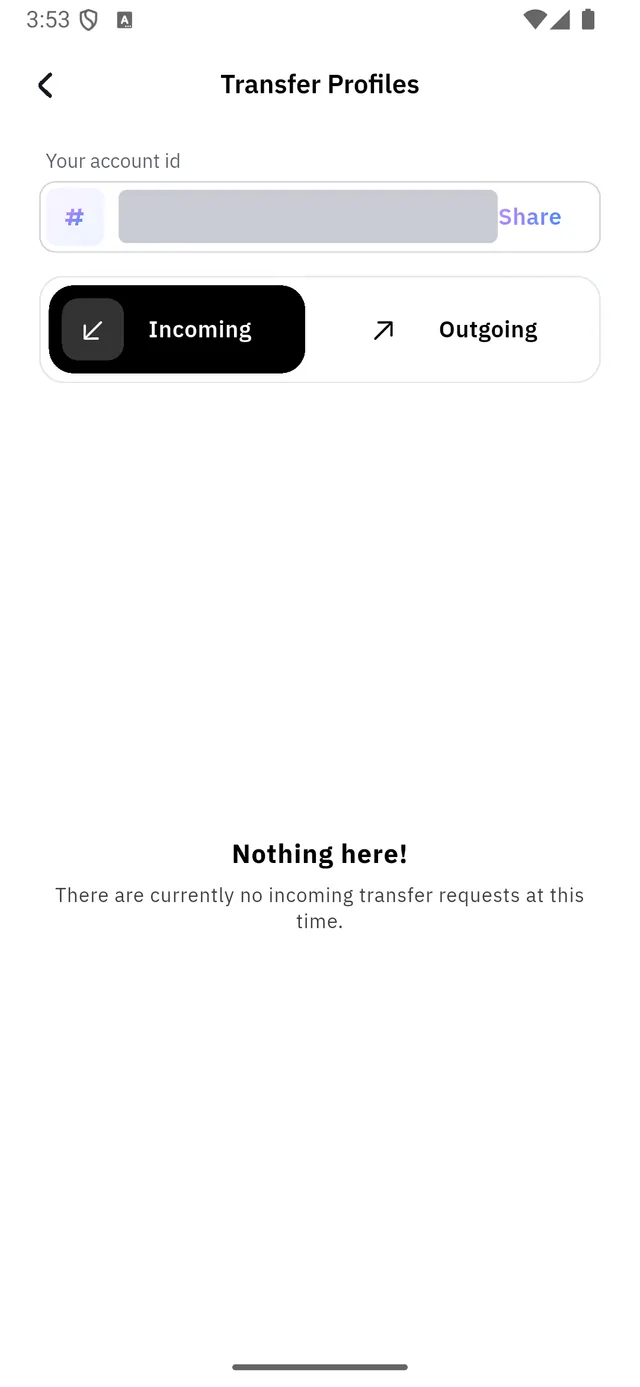
| 1 | Your account id — give this to whoever is sending you a site |
| 2 | Incoming — sites other people want to hand you |
| 3 | Outgoing — sites you have offered to someone else |
The id is greyed out in the picture above on purpose; yours is a long string of letters and numbers, and Share copies it out to any app.
:::note Two halves, two screens You start a transfer from the site itself — ⋯ → Transfer in Website settings. This screen is only where the requests are watched and accepted. :::
Smart Links
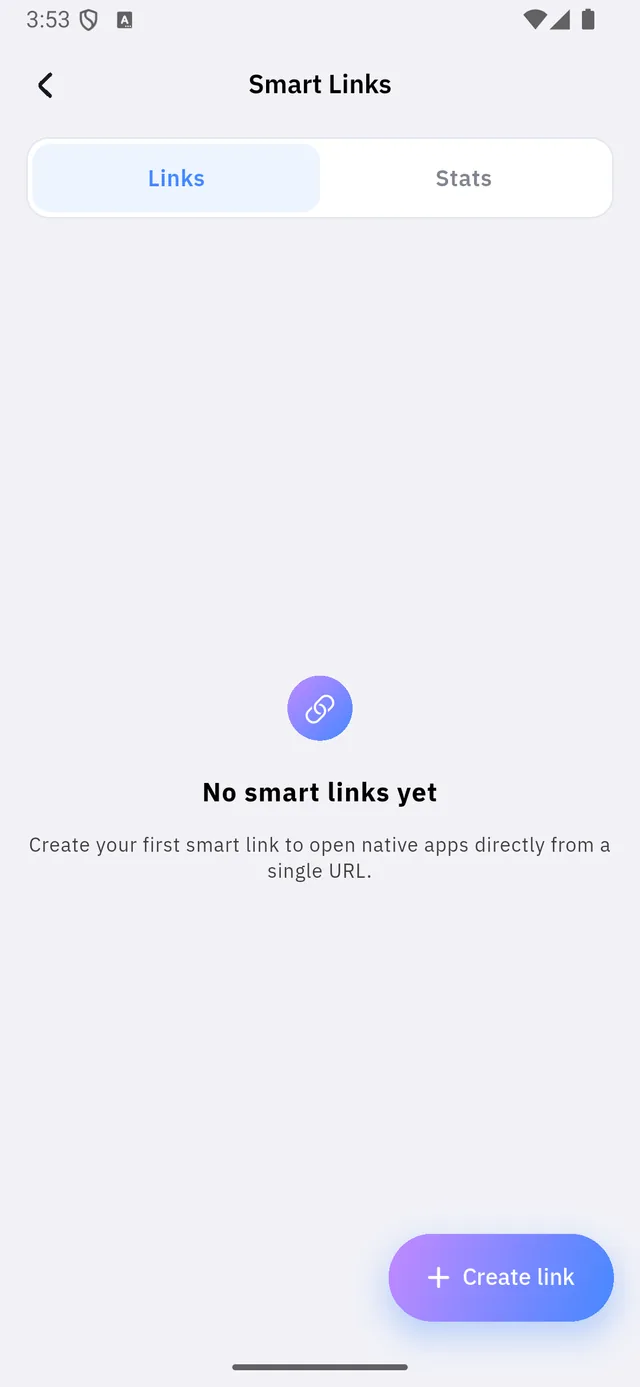
Create your first smart link to open native apps directly from a single URL.
One link that opens the app rather than the website — Instagram in Instagram, not Instagram in a browser tab. Stats counts what each one got.
Language
The app's own language, not your site's. Changing it does not translate any content you have written.
The rest of Settings
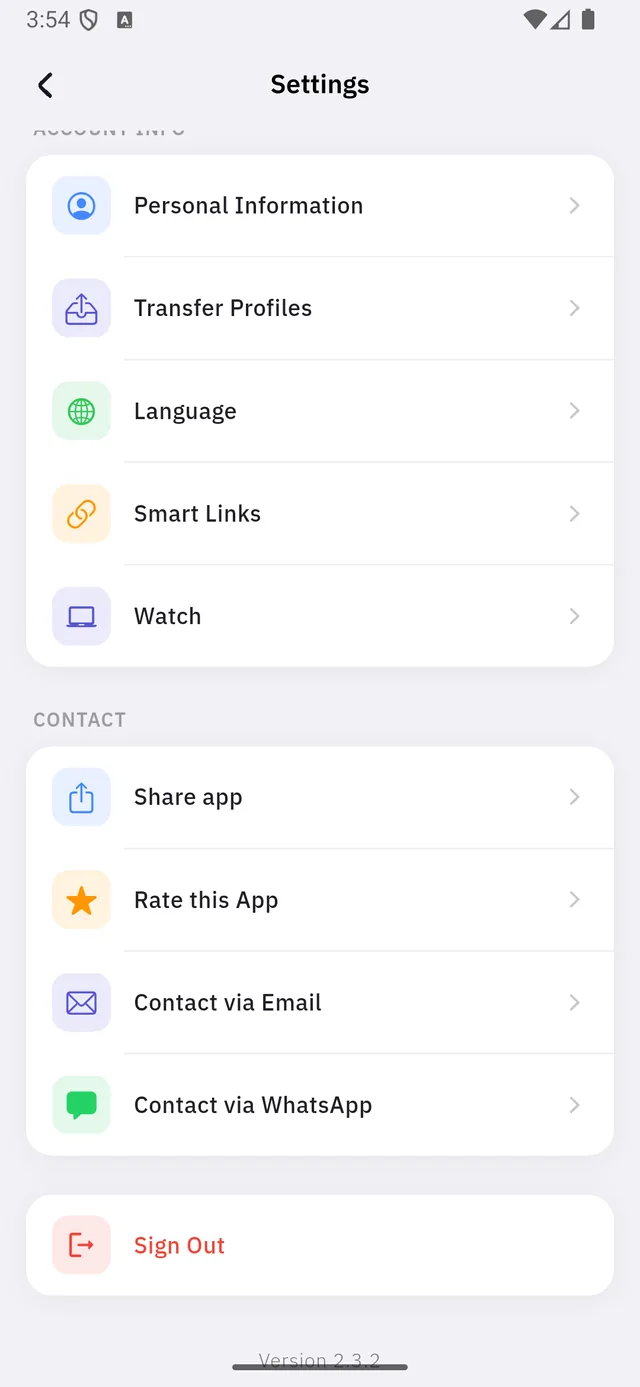
| Item | What it does |
|---|---|
| Share app | Sends a friend the app's store link |
| Rate this App | Opens the store listing |
| Contact via Email | Opens your mail app, addressed to Qshot |
| Contact via WhatsApp | Opens WhatsApp, same |
| Sign Out | Leaves the account on this device |
The app version sits at the very bottom. Quote it whenever you report a problem — it is the first thing support will ask for.
Deleting your account
At the foot of Personal Information, in red.
:::danger This is not the same as signing out Deleting removes the account, every site on it, and every address those sites used. The addresses go back to the pool for anyone to claim, and anything you printed with those links stops working.
To simply leave the app on this phone, use Sign Out instead. :::